• About
    • Kingdom Vision
    • Our History
    • What is Disciple.Tools?
    • For Online Strategies
    • For Small Teams
    • For Multiple Teams
    • Why Disciple.Tools?
  • Pricing (Free)
    • Pricing (Free)
    • Hosting
    • Demo
    • Give
  • Software
    • Download
    • Plugins
    • Features
    • Security
    • Translation
    • Mobile
    • Open Source
  • Resources
    • Documentation
    • Training Videos
    • Community Forum
    • Discord Channel
  • Join the Community
  • News
  • About
    • Kingdom Vision
    • Our History
    • What is Disciple.Tools?
    • For Online Strategies
    • For Small Teams
    • For Multiple Teams
    • Why Disciple.Tools?
  • Pricing (Free)
    • Pricing (Free)
    • Hosting
    • Demo
    • Give
  • Software
    • Download
    • Plugins
    • Features
    • Security
    • Translation
    • Mobile
    • Open Source
  • Resources
    • Documentation
    • Training Videos
    • Community Forum
    • Discord Channel
  • Join the Community
  • News
Demo
menu

Introduction

24
  • Welcome to Disciple.Tools
  • Structure of Disciple.Tools explained
  • Developer Documentation
  • Explore a Demo
    • Launch a demo
    • Removing the demo data
    • Inviting other users
    • Migrating your data from a demo
  • Use Case Tutorial
    • Introduction
    • 1. Your Profile
    • 2. Adding Teammates
    • 3. Another Contact
    • 4. Dispatcher Role
    • 5. Updating a Contact
    • 6. Forming a Group
    • 7. Maturing Disciples
    • 8. @ Mentioning
    • 9. Switch Users
    • 10. Scheduling a Meeting
    • 11. Sub-assigning
    • 12. Following Daughter Groups
    • 13. Baptism
    • 14. Team Information
    • 15. Filtering
    • 16. Viewing the Metrics

Big Concepts

26
  • What makes Disciple.Tools different?
  • Tricky Terminology (Glossary)
  • Core system features vs plugins or extensions
  • Multi-site vs a single instance
  • Users (vs Contacts)
  • Setting Locations (Geolocation and Mapping)
  • Metrics
  • Translation
    • Our multi-lingual focus
    • Contributing Your Language Skills
  • Roles
    • Roles – Introduction
    • Subscriber/Registered
    • Strategist
    • Multiplier
    • Digital Responder
    • Dispatcher
    • Disciple.Tools Admin
    • Administrator
    • User Manager
    • Roles and Capabilities Manager
    • Access By Source
    • Increasing User Access
    • Sharing a Record
  • Magic Links
    • Magic Links
    • Magic Link Form Templates
    • Magic Link Scheduling
    • User Updates for Contacts or Groups

Initial Setup

43
  • Overview
  • Host it yourself
  • SSO Login
  • Admin Setup
    • Media Storage
    • Admin – Intro
    • Appearance
    • Users
    • Site Links
    • Customizations (D.T)
    • People Groups
      • People Groups
      • Import People Groups
    • Extensions (D.T)
      • Extensions
      • Storage
      • Twilio – SMS and WhatsApp
      • Trainings
        • Training Records Intro
        • Trainings List Page
        • Trainings Record Page
        • Create New Training
        • Editing the Training Event
    • Settings (D.T)
      • Settings
      • General Settings
      • Custom Lists
      • Custom Tiles
      • Custom Fields
      • Site Link System
      • Security
      • Customizing the Critical Path
    • Utilities
      • Utilities
      • Exporting and Importing Settings
  • Frequently Asked Questions
    • Frequently Asked Questions
    • How do I add other users to my Disciple.Tools Site?
    • Bulk Deleting Contacts
    • How do I bulk edit contacts?
    • Comments Translation
    • How do I add custom tiles or fields?
    • How do I delete a contact or group?
    • How do I link my Disciple.Tools site to another?
    • How much does it cost to use Disciple.Tools?
    • Why can’t I see all my contacts?
    • I got a permission denied message???
    • How do I change my password?
    • How can I change my email?
    • When will the documentation be updated?

User Orientation

22
  • Tasks and Reminders
  • Dashboard
  • Filtering Records
  • Contacts
    • Intro
    • Contact Types
    • Contact List Page
    • Contact Record Page
    • Merging Contacts
    • Duplicate Checker
    • Transferring Contacts
    • Record History and Activity Reverting
  • Groups
    • Intro
    • Group List Page
    • Group Record Page
  • Admin Backend
    • Admin – Intro
  • Users
    • Inviting Users
    • Inviting a User from a Contact Record
    • Linking an Existing Contact to a User
    • Assignment Tools
  • Profile Settings
    • Profile Settings
    • Availability (Out of Office)
    • Notifications
  • Home
  • Docs
  • Initial Setup
  • Admin Setup
  • Extensions (D.T)
  • Twilio – SMS and WhatsApp
View Categories

Twilio – SMS and WhatsApp

Welcome to the Twilio Integration documentation.

Developer can find the D.T Twilio API Documentation here.

Questions or issues? Let us know on the Disciple.Tools Forum.

Getting Started with SMS #

1. Create a Twilio account #

Visit https://www.twilio.com/ to create your account

2. Purchase a number for your region #

Step 1

Navigate to your Twilio Dashboard and click “Develop”
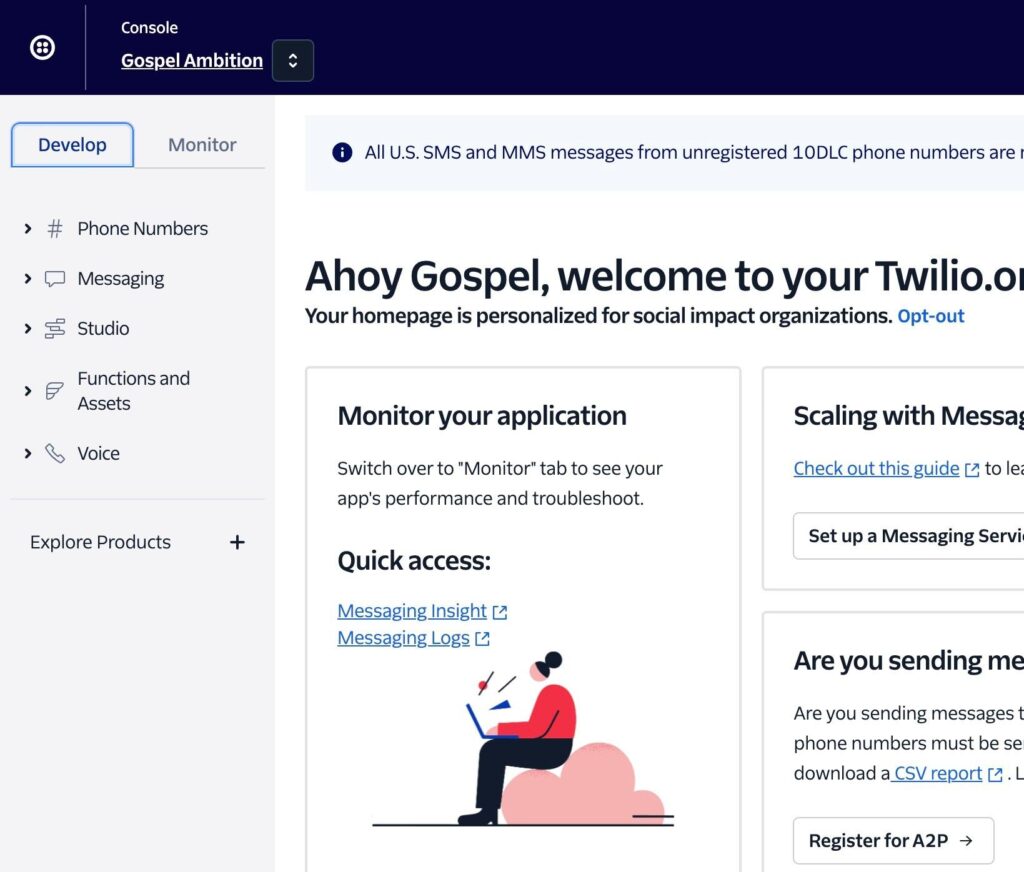
Step 2

Click “Phone Numbers”
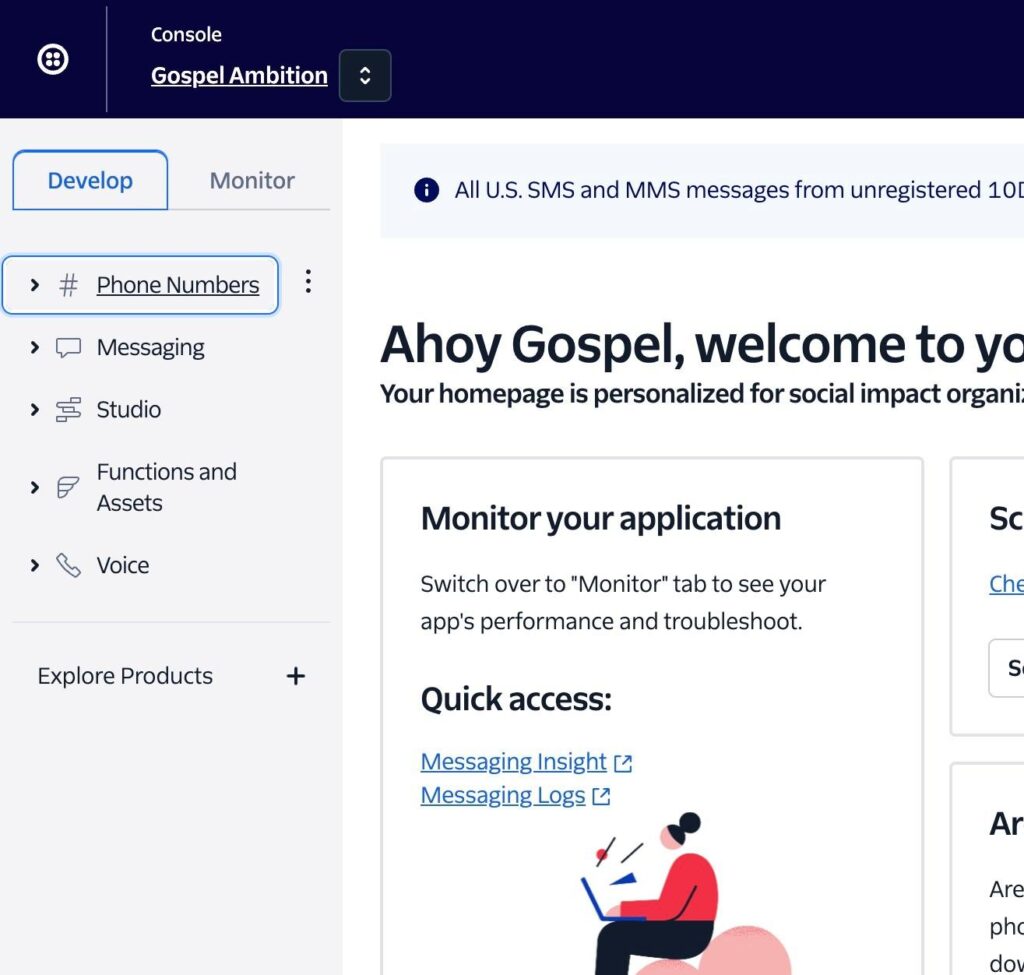
Step 3

Click “Manage”
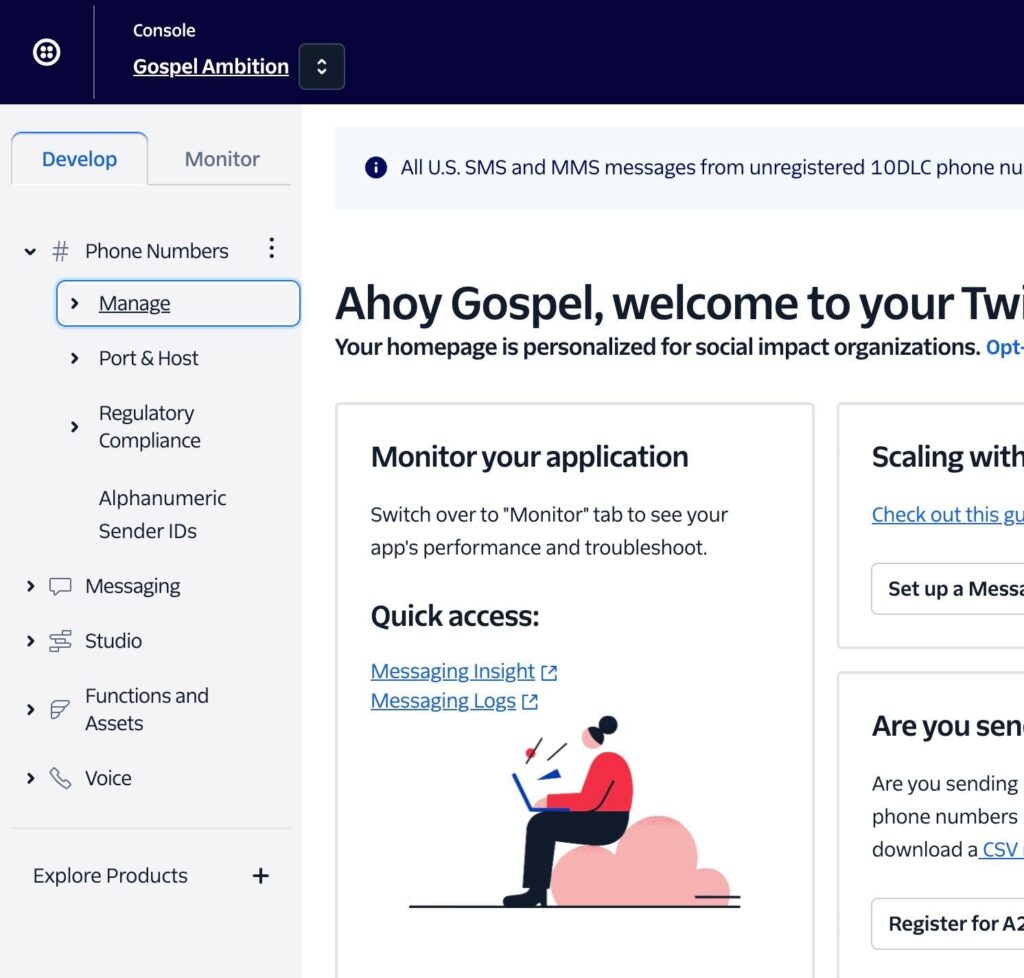
Step 4

Click “Active numbers”
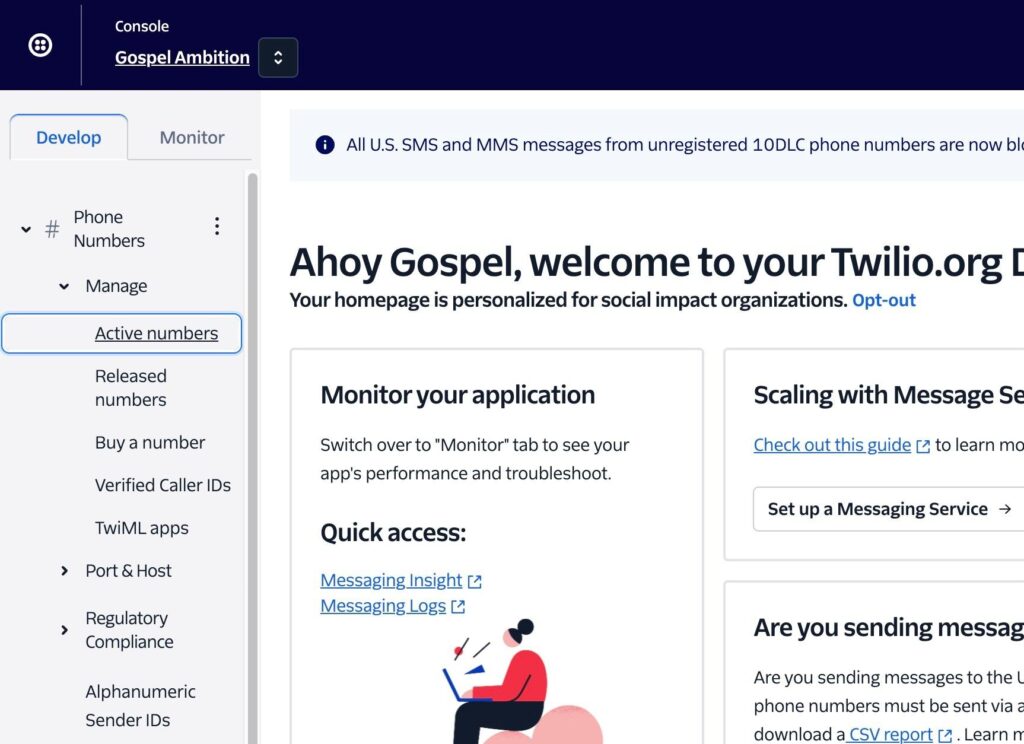
Step 5

Click “Buy a number”
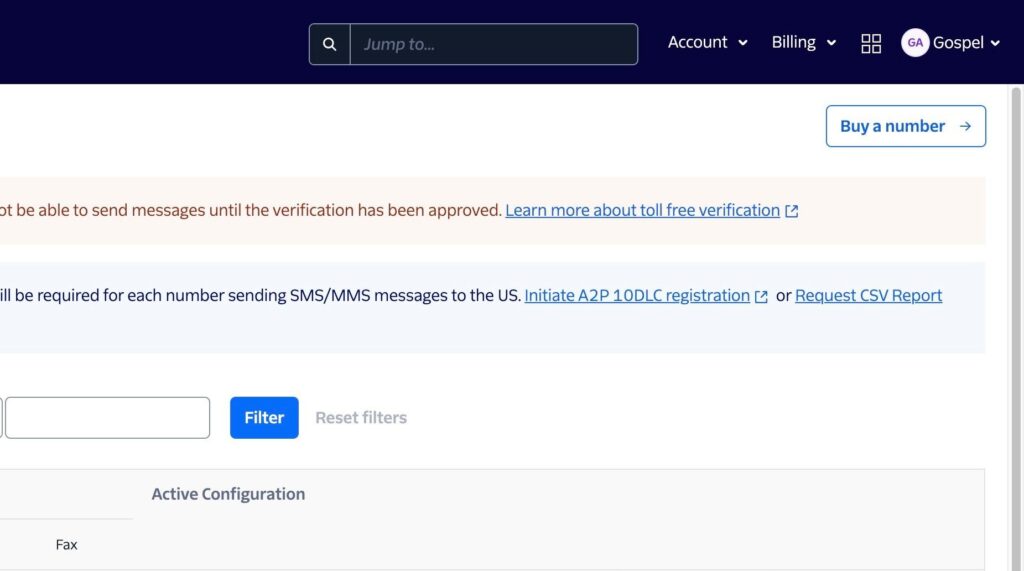
Step 6

Choose a number for your region and click “Buy”
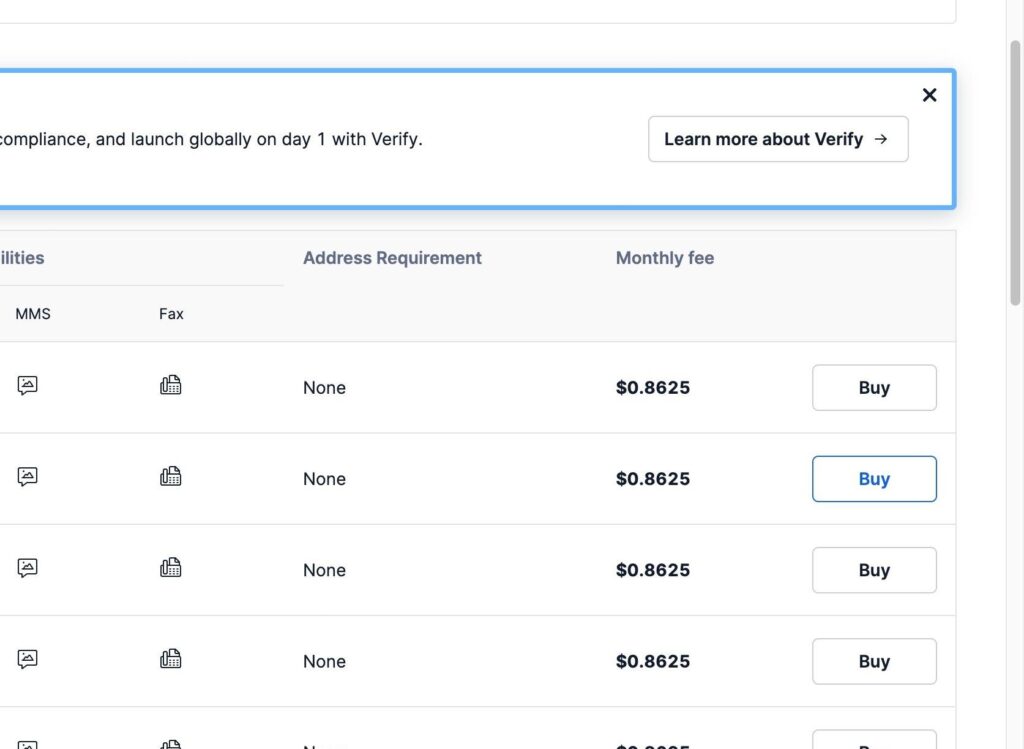
Step 7

Confirm by clicking “Buy”
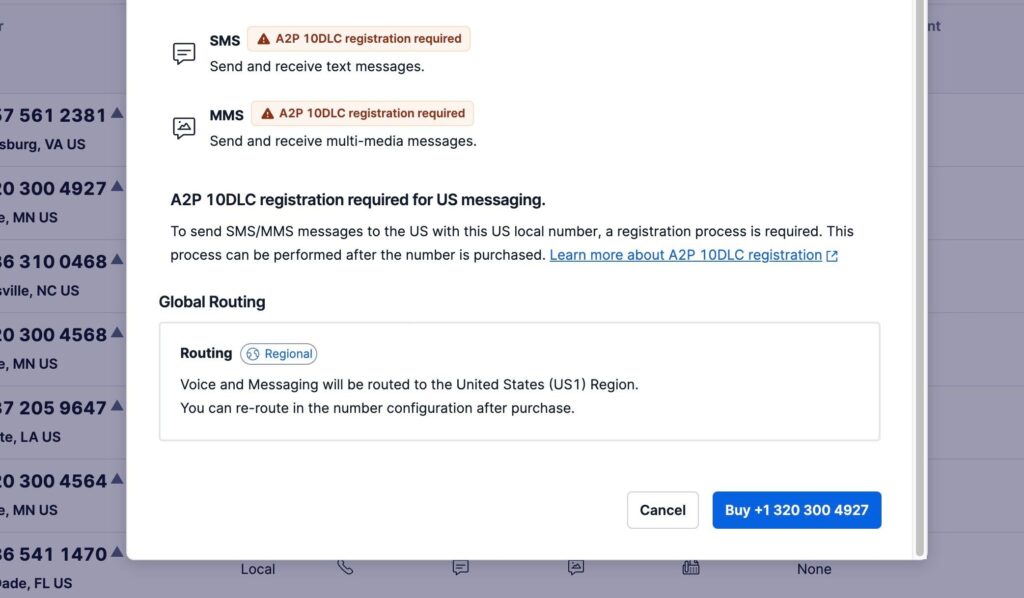
Step 8

You now own an awesome number!

3. Setup a messaging service #

Step 1

Navigate to your Twilio Console and click this Messaging
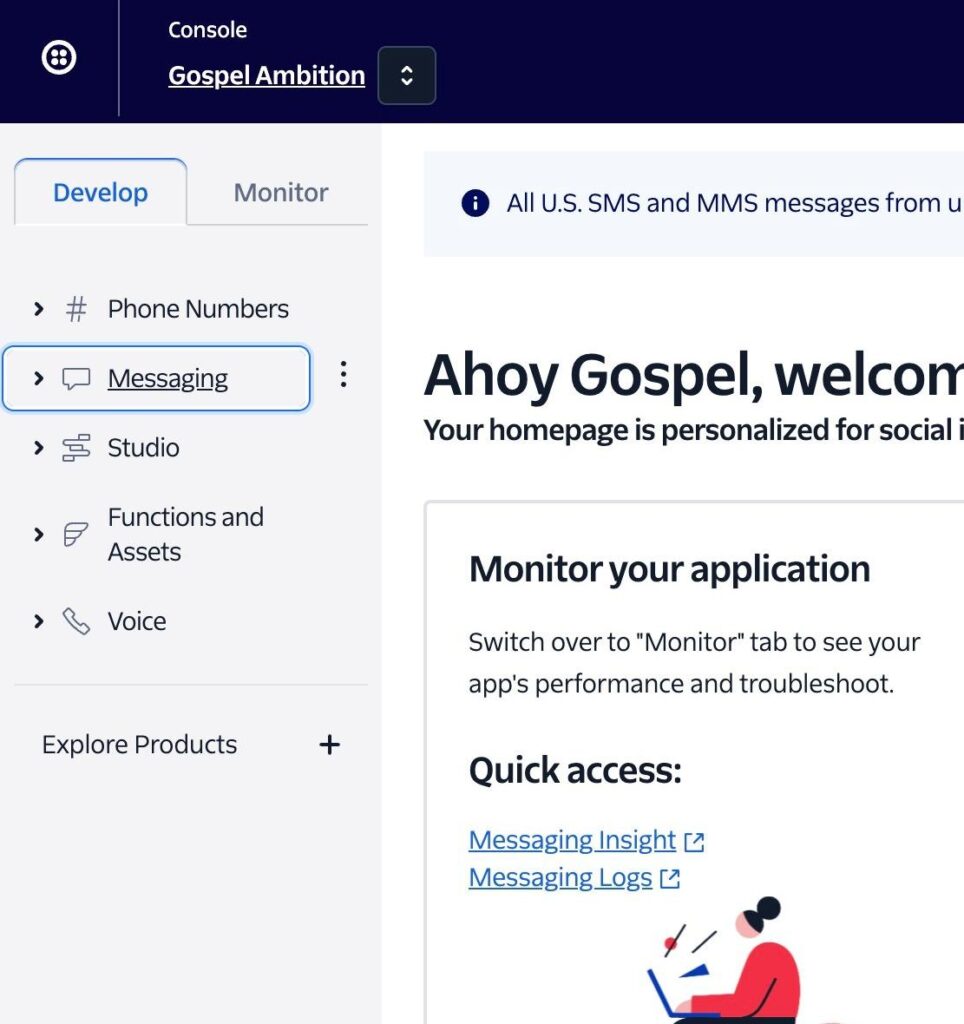
Step 2

Click “Services”
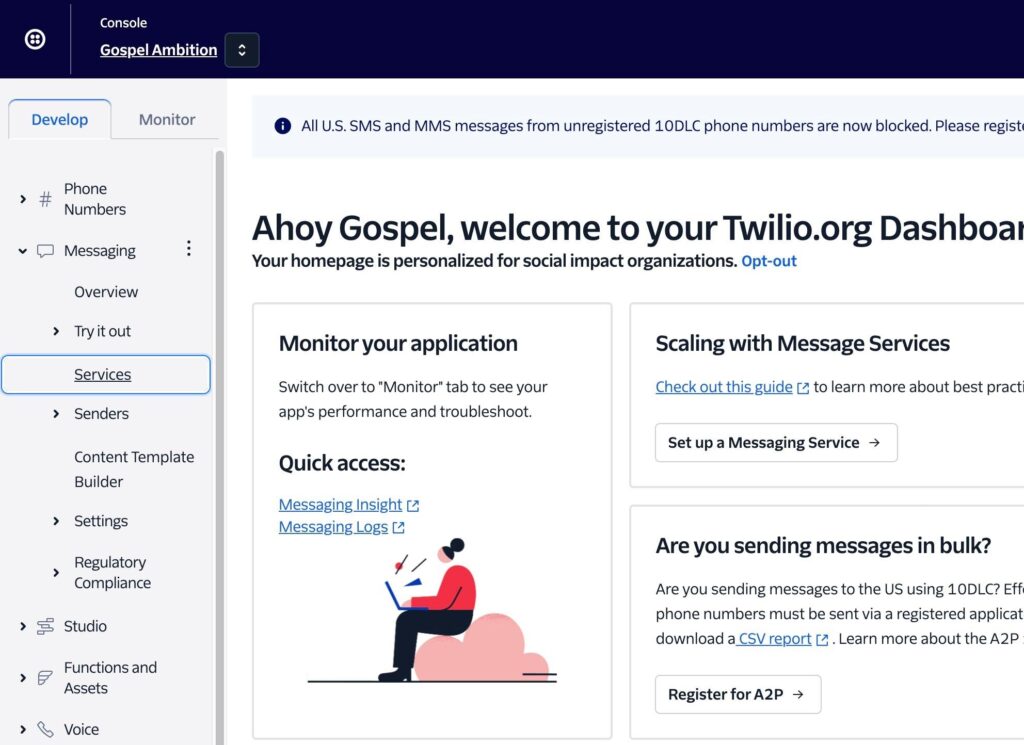

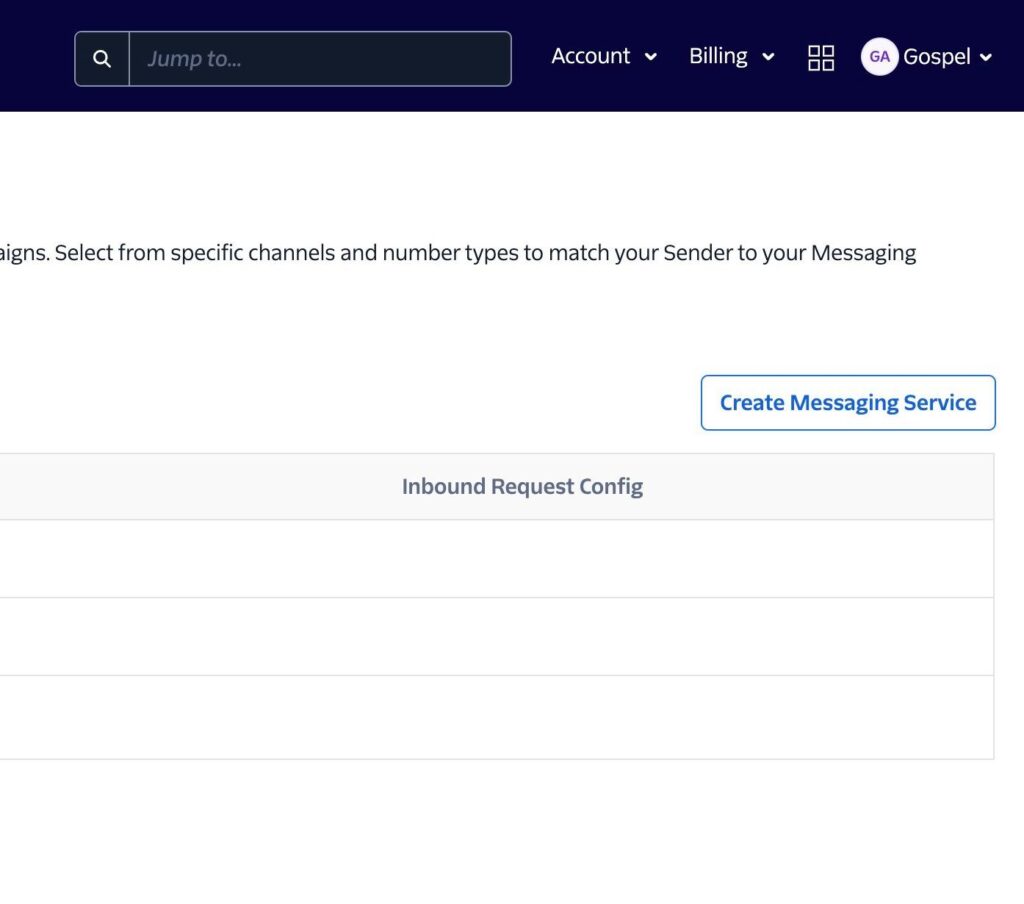
Step 3

Click “Create Messaging Service”

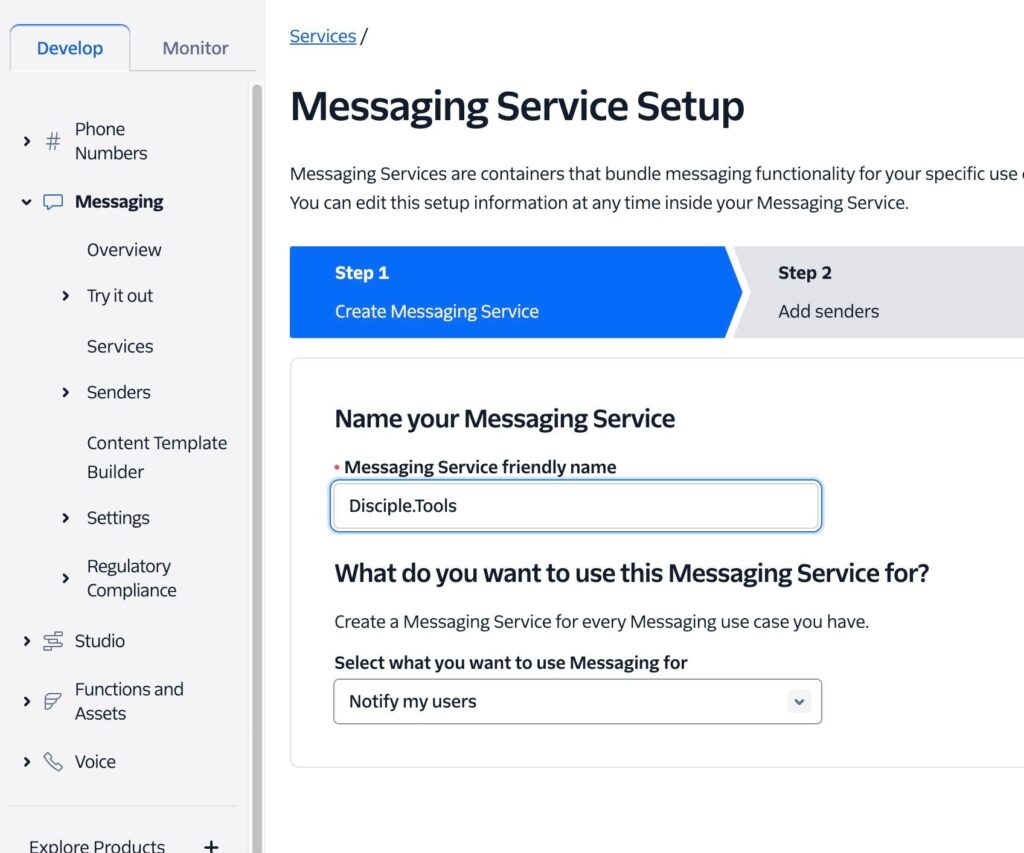
Step 4

Name your Messaging Service. “Disciple.Tools” is fine.

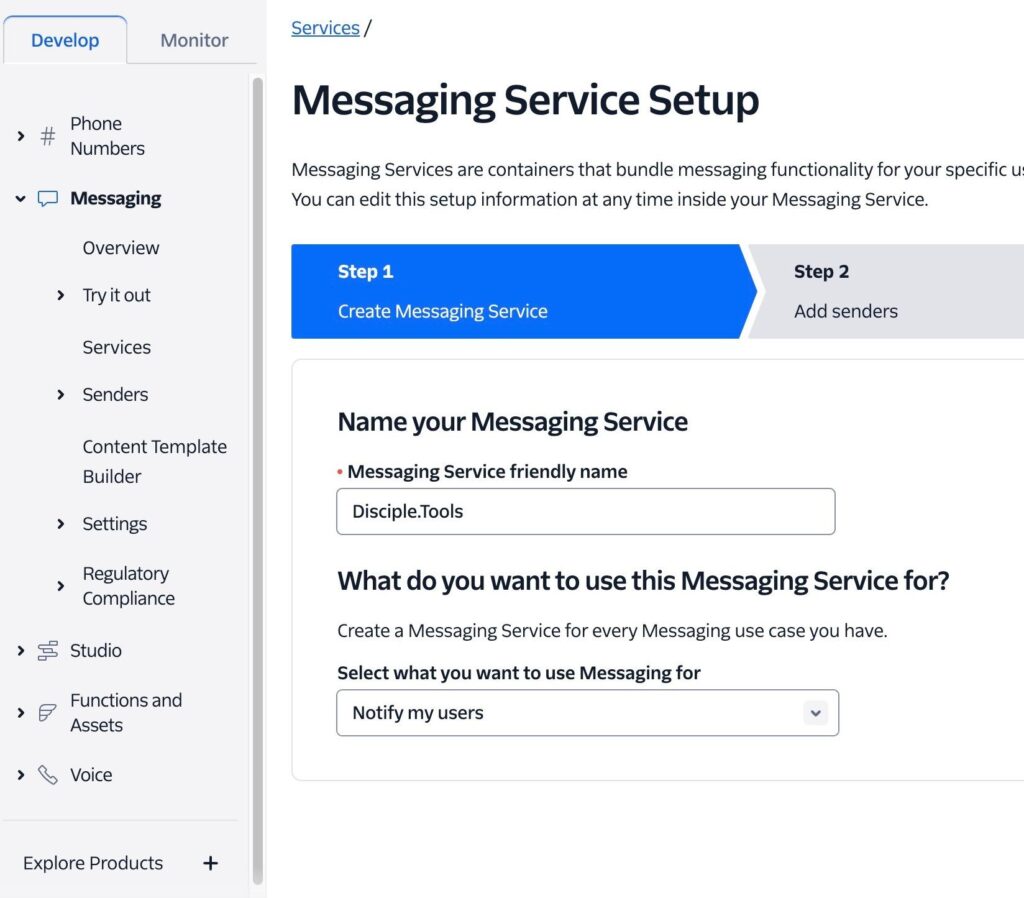
Step 5

What do you want to use this Messaging Service for?\ Leave this section as “Notify my users”

Step 6

Click “Create Messaging Service”


Step 7

In Step 2, Click “Add Senders”
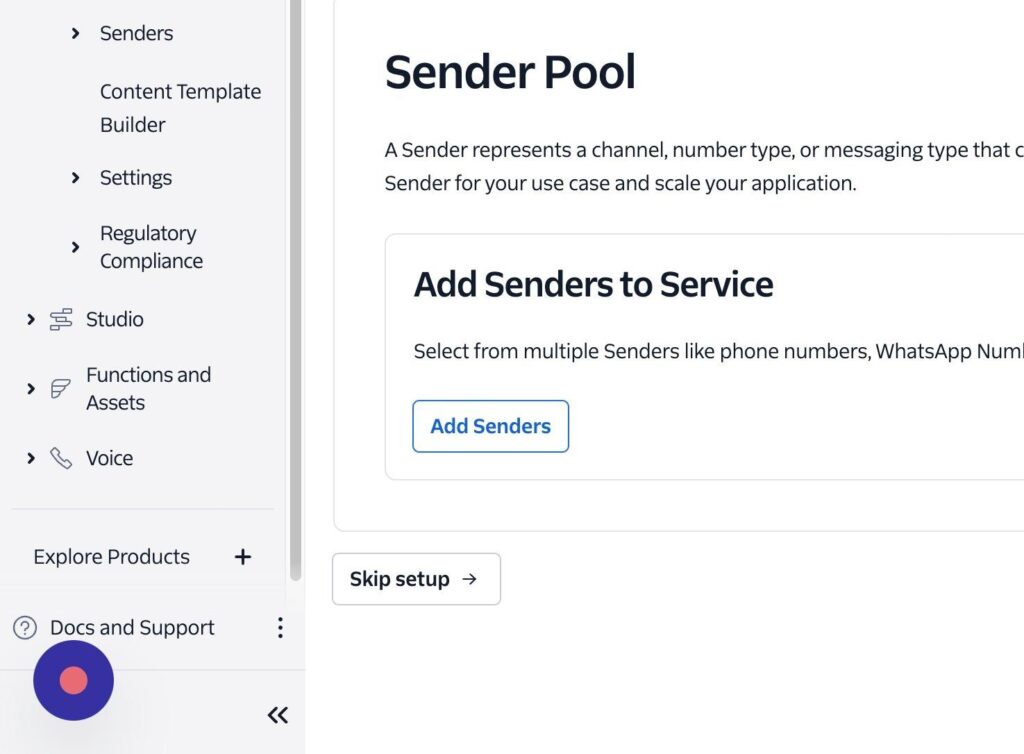

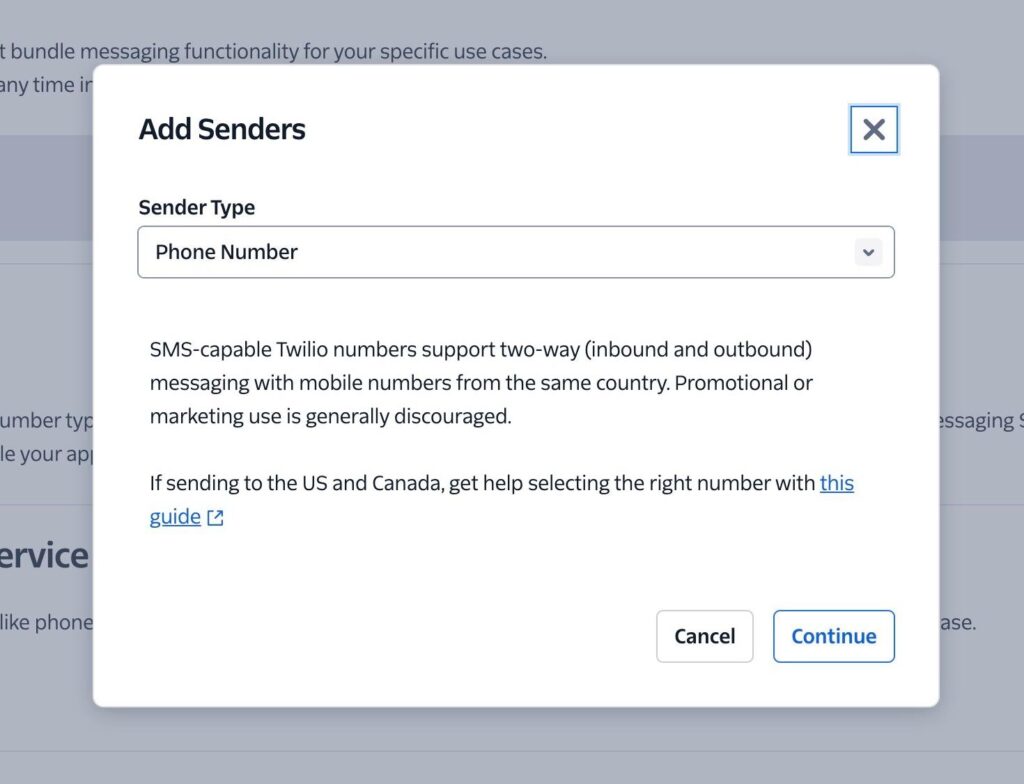
Step 8

Leave Sender Type as Phone Number and Click “Continue”

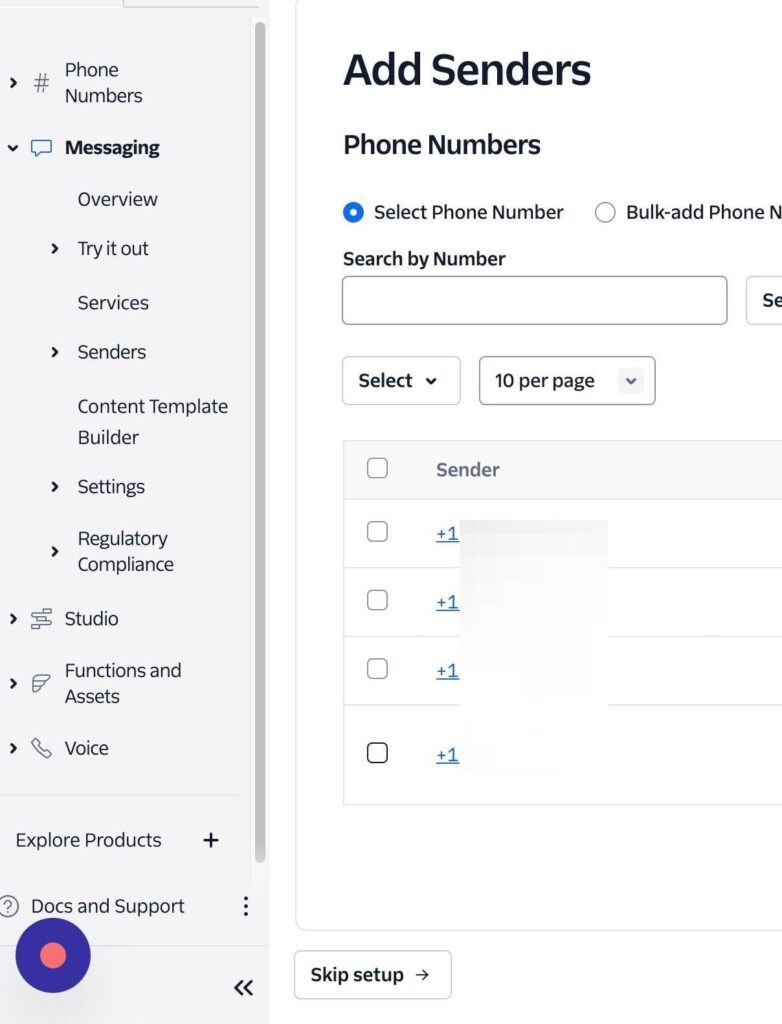
Step 9

Select your phone number

Step 10

Click “Add Phone Numbers”
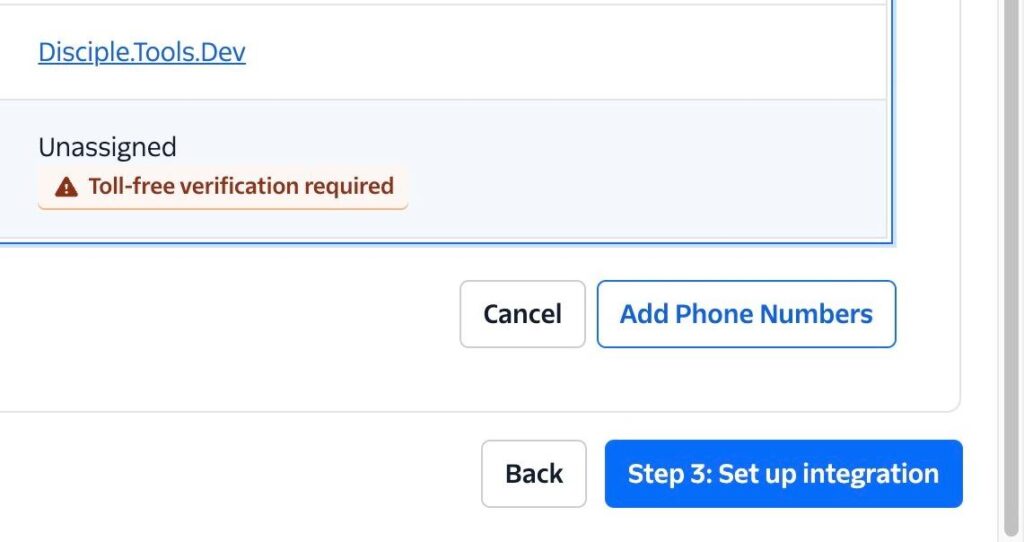

Step 11

Click “Step 3: Set up integration”
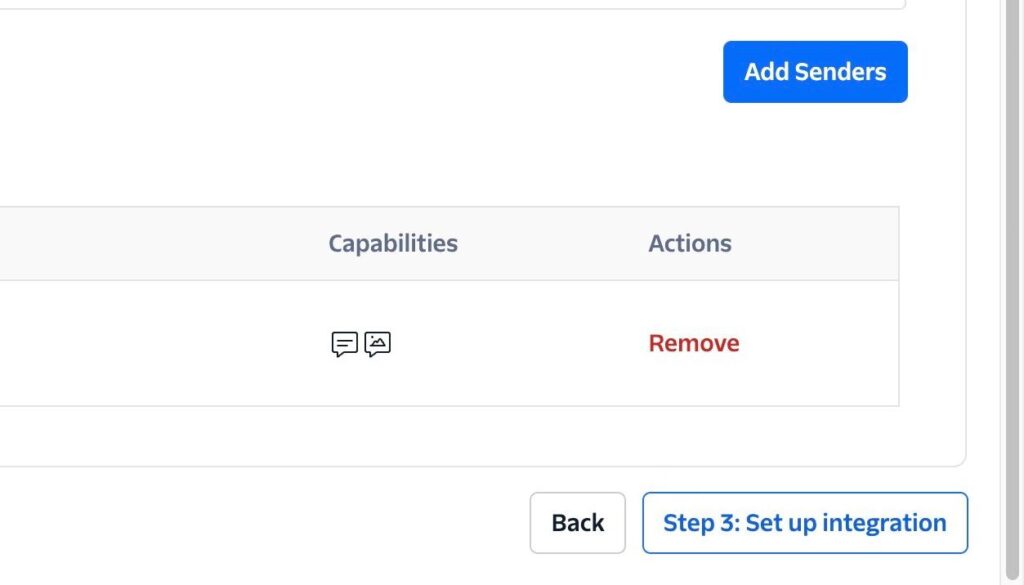

Step 12

Click here.
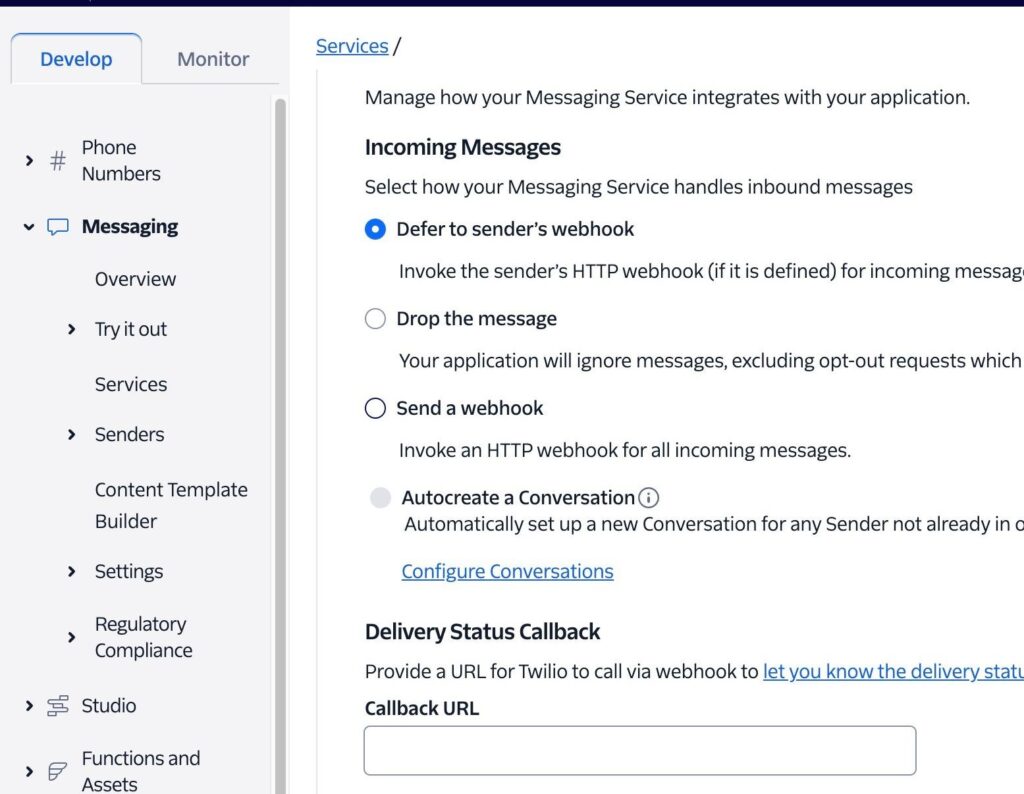

Step 13

Go to your activated Twilio plugin in the WP Admin and copy the webhook url
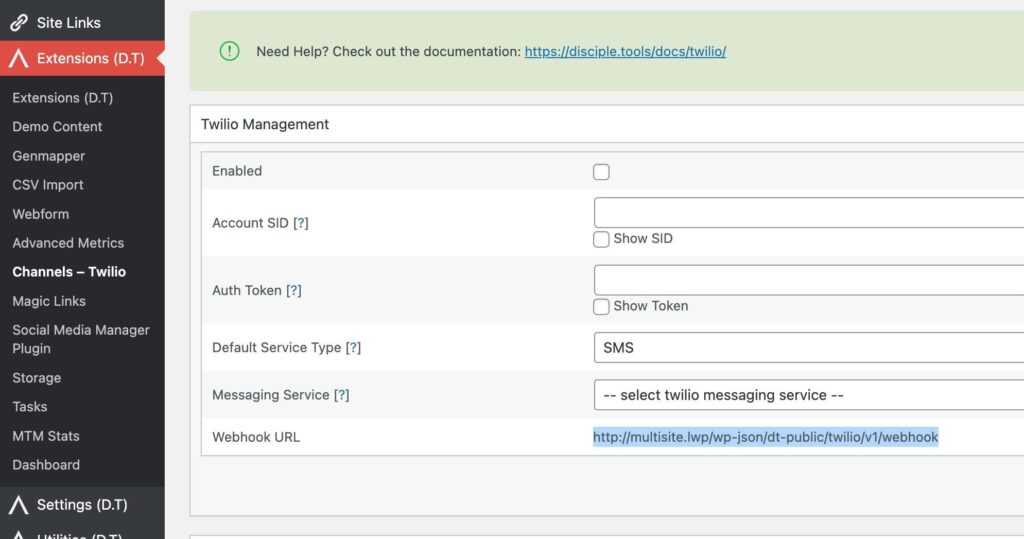

Step 14

Paste it in this text field.
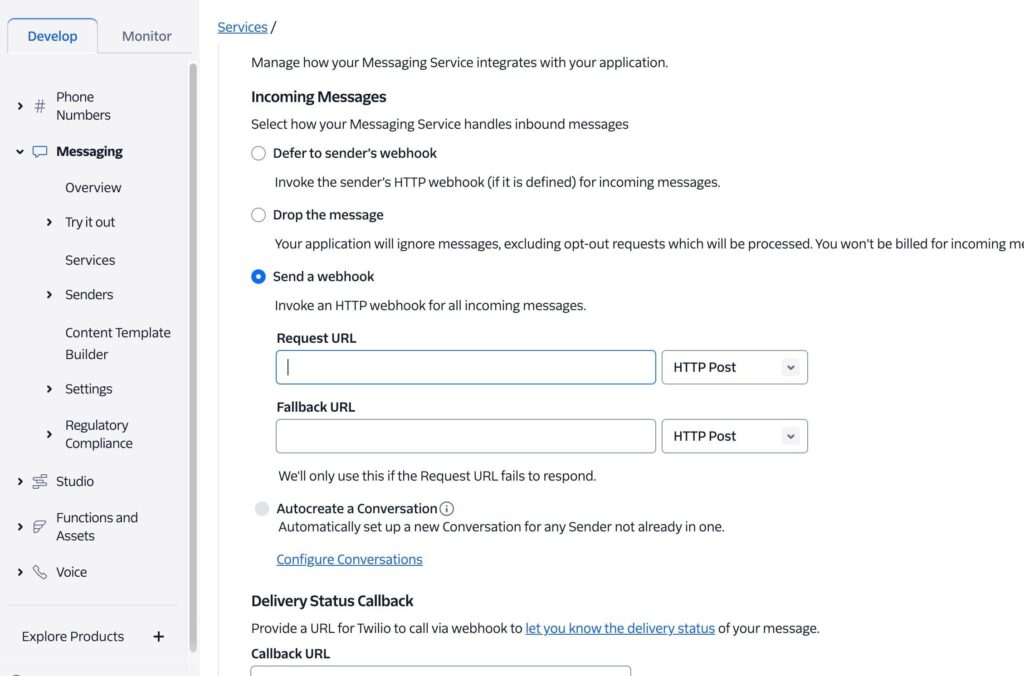

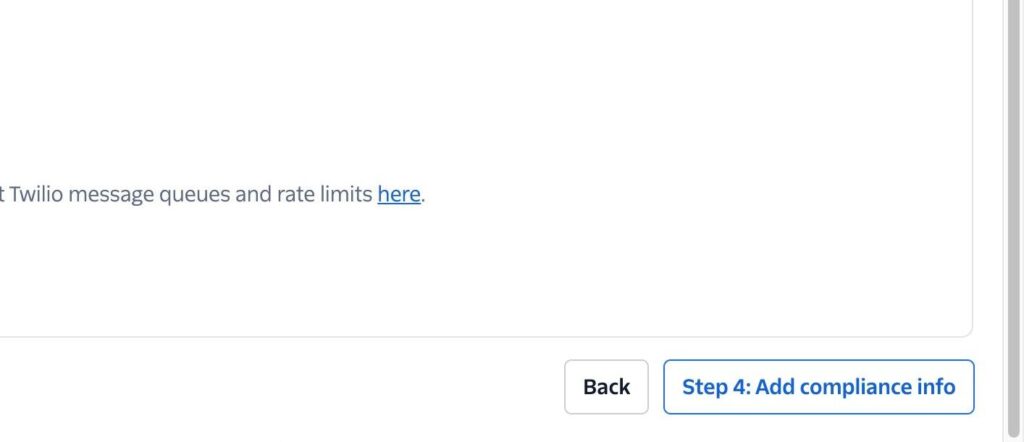
Step 15

Click “Step 4: Add compliance info”

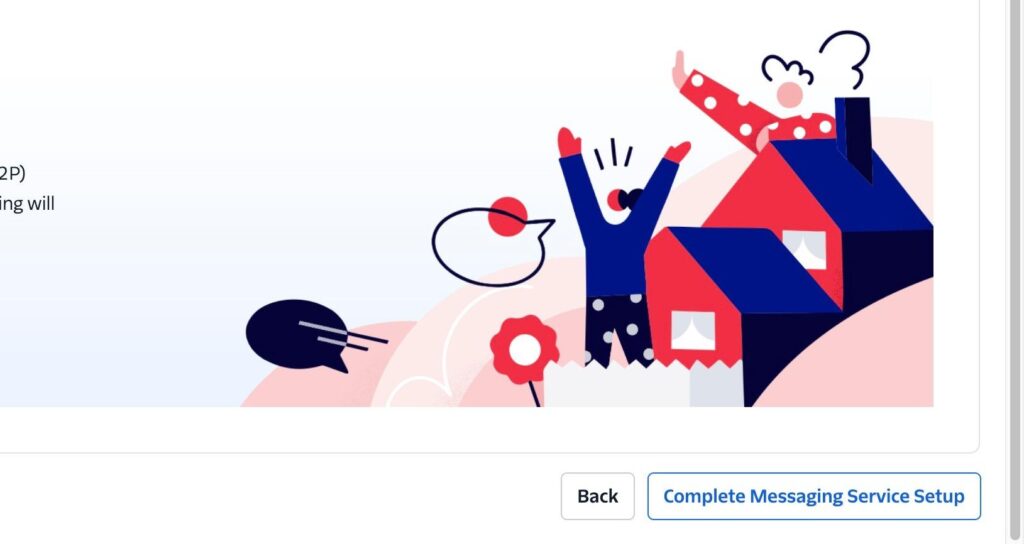
Step 16

Click “Complete Messaging Service Setup”

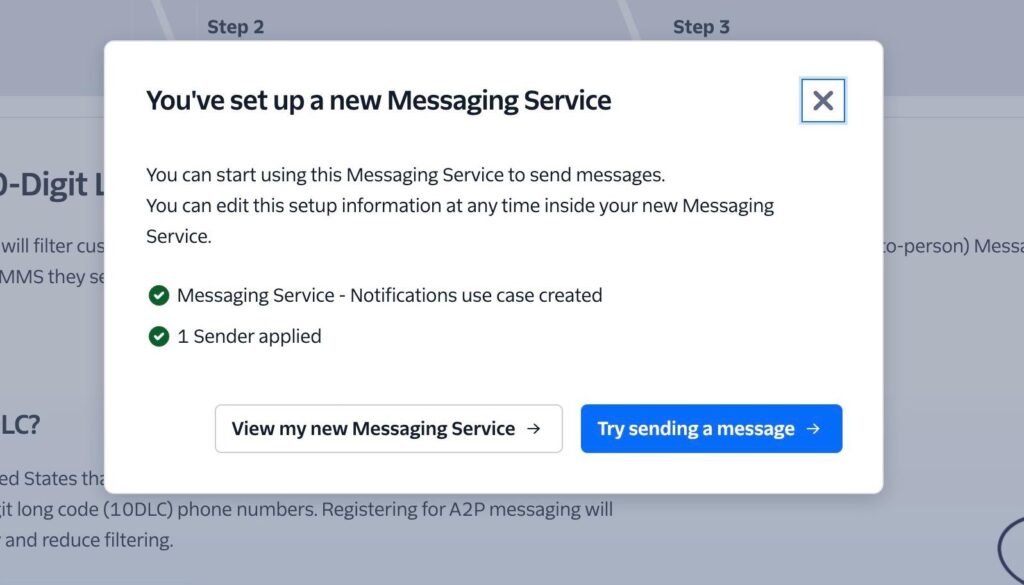
Step 17

Well Done! Proceed to configuring Disciple.Tools

4. Configure Disciple.Tools with your Twilio account information #

Step 1

Navigate to
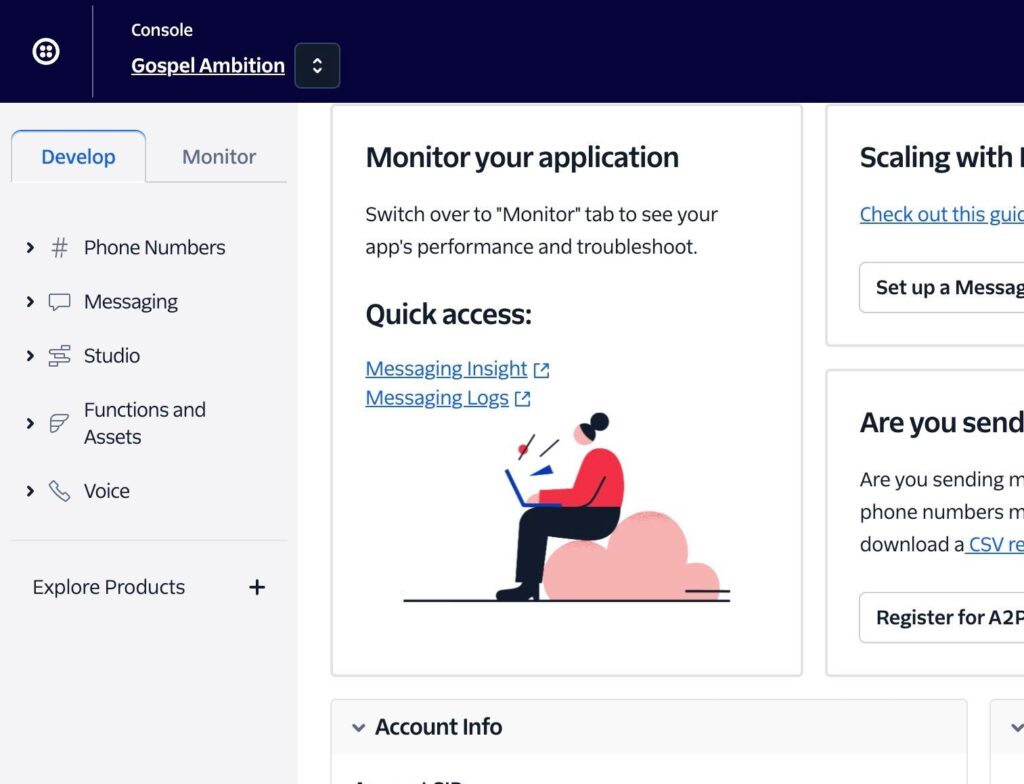

Step 2

Copy Account SID
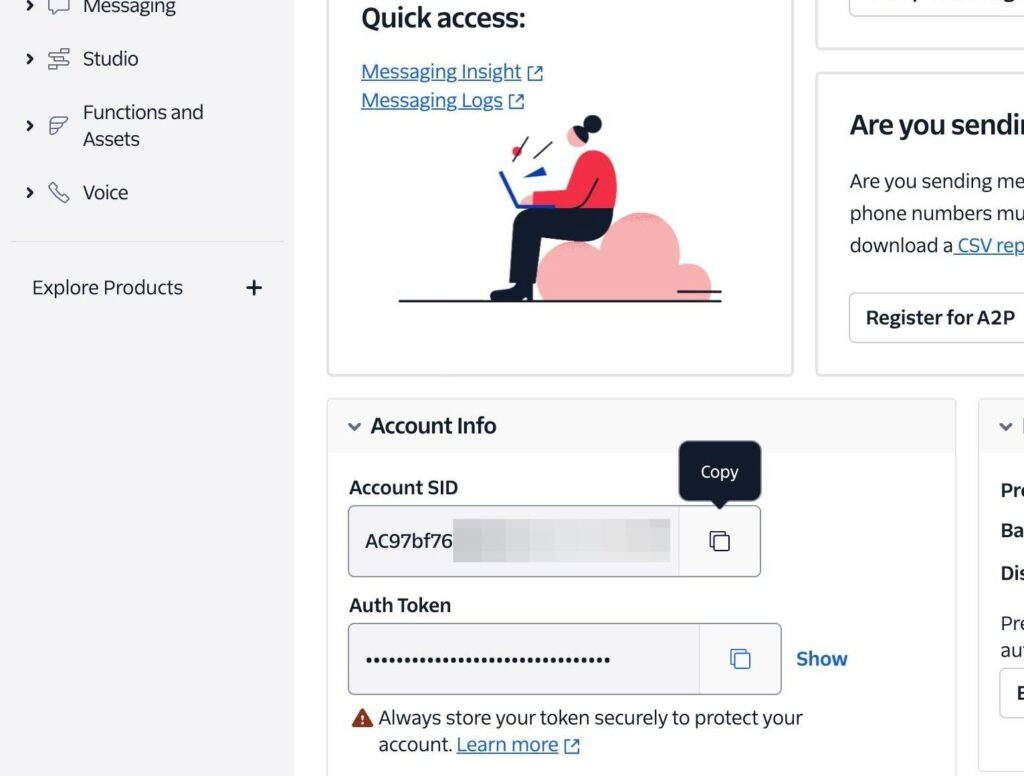

Step 3

Copy your Auth Token
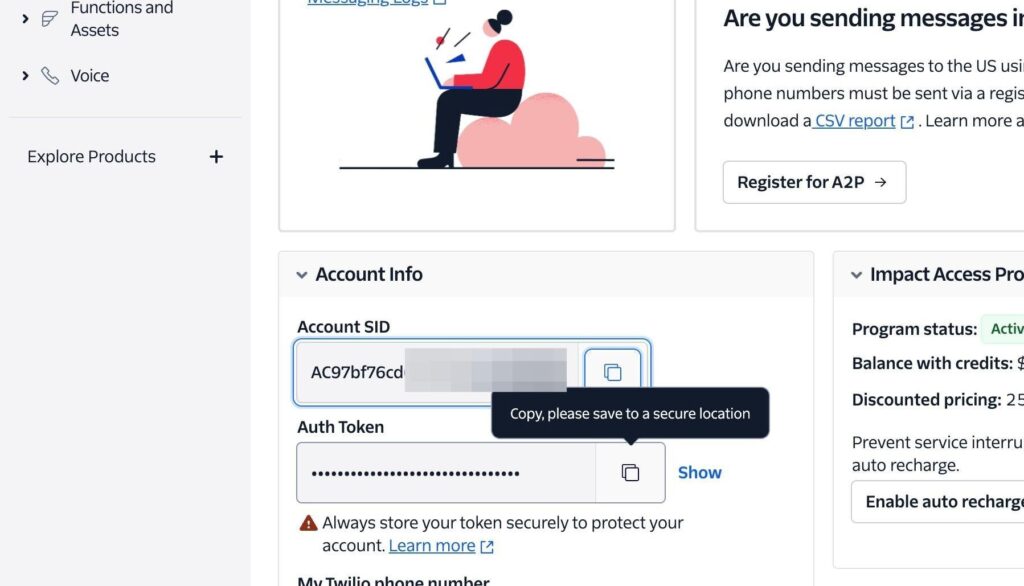

Step 4

Open the Twilio Plugin WP Admin Setting page under D.T Extensions > Channels – Twilio
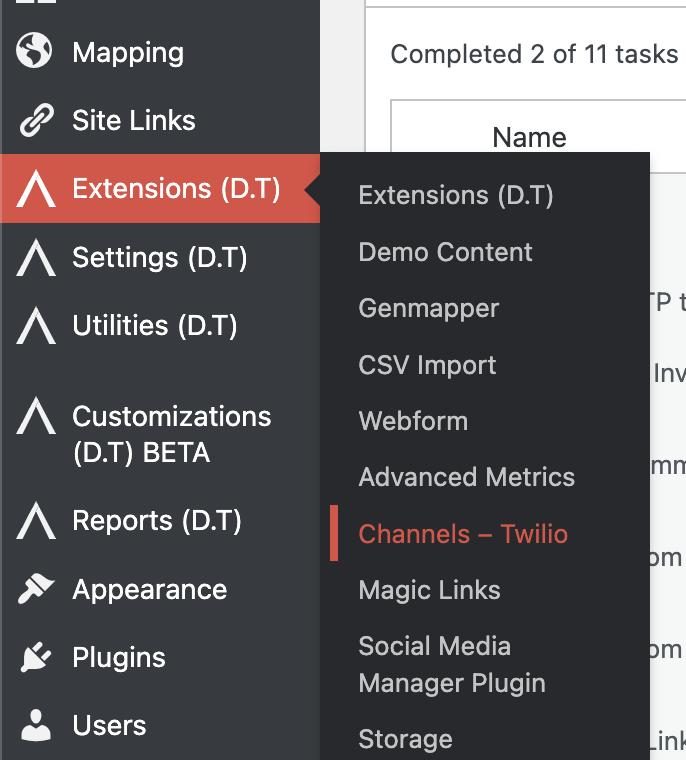

Step 5

Enable the Plugin
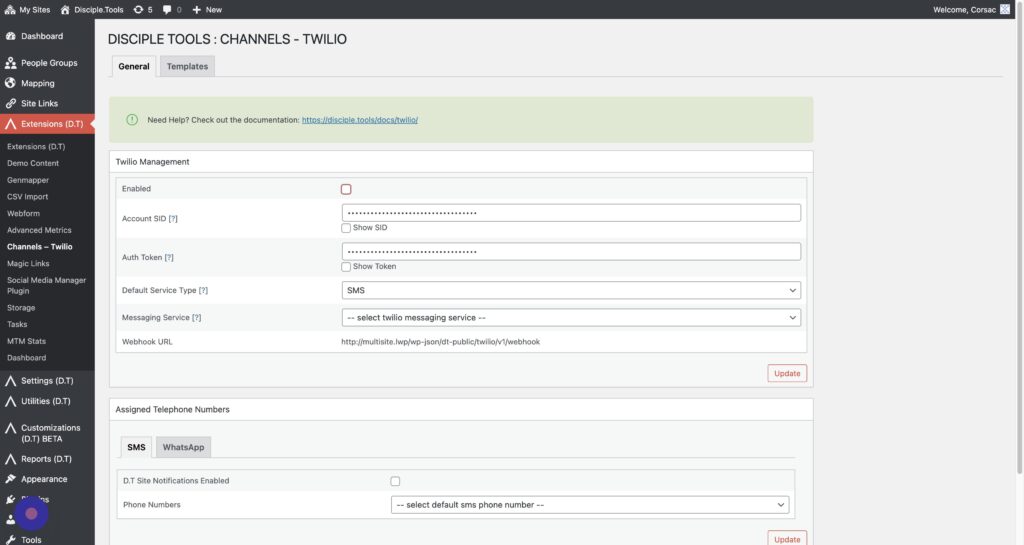

Step 6

Paste in the Account SID you copied earlier
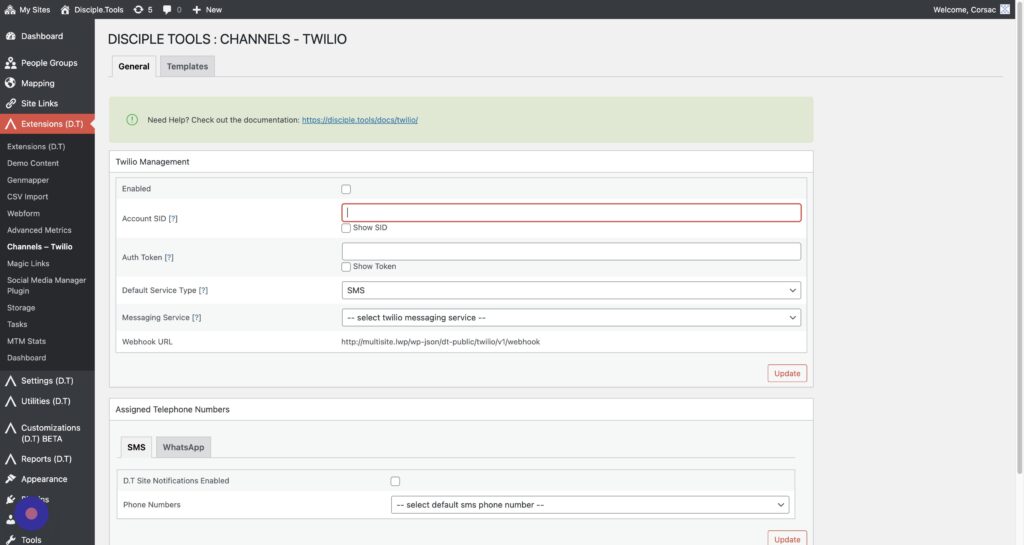

Step 7

Paste in the Auth Token you copied earlier
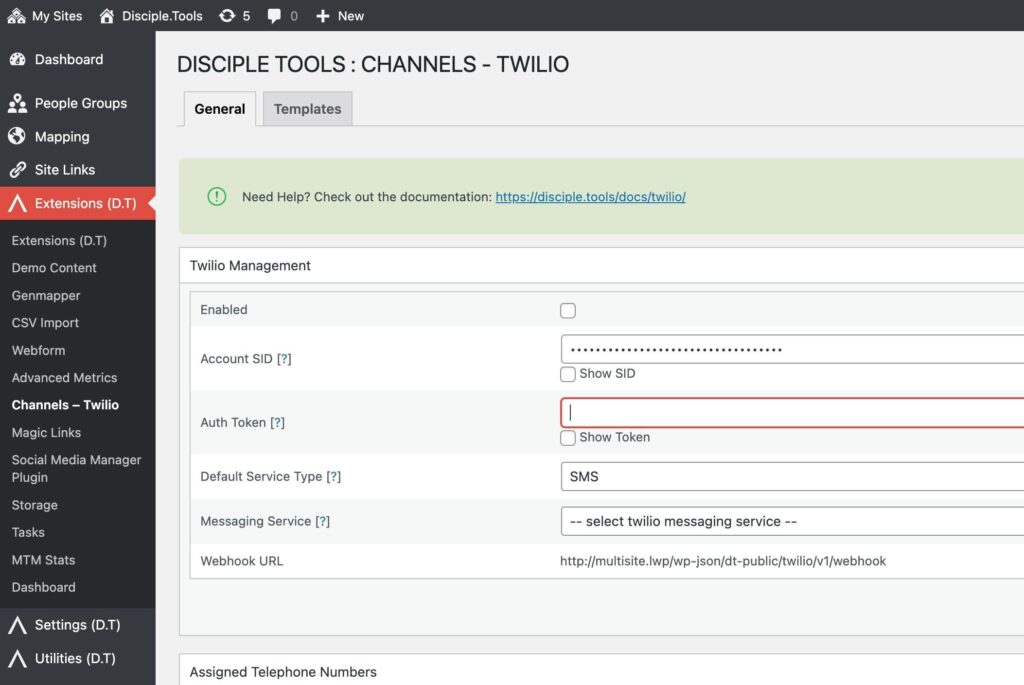

Step 8

Click “Update”
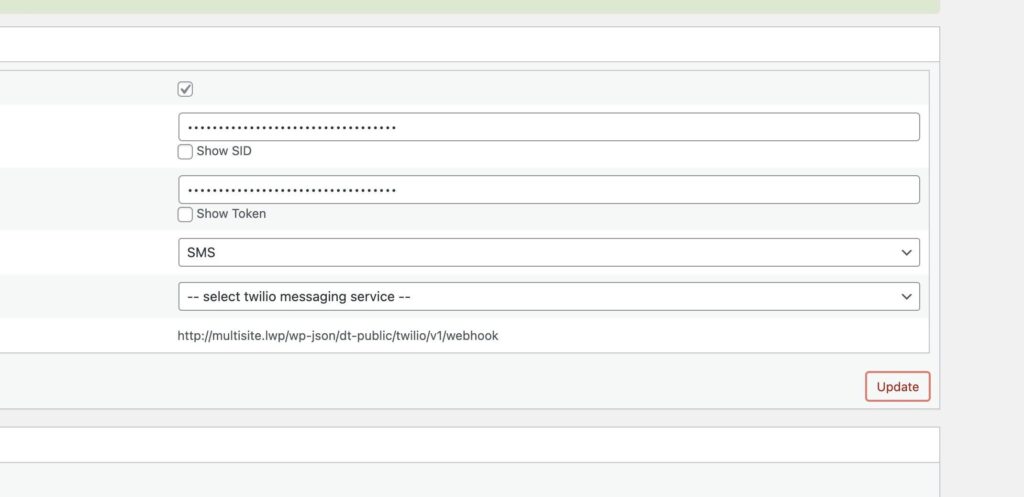

Step 9

Click this dropdown.
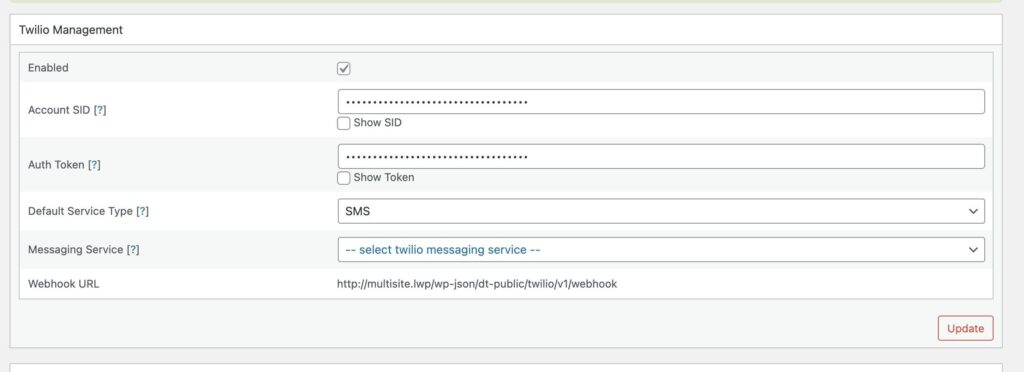

Step 10

Select the “Disciple.Tools” Messaging Service we created earlier
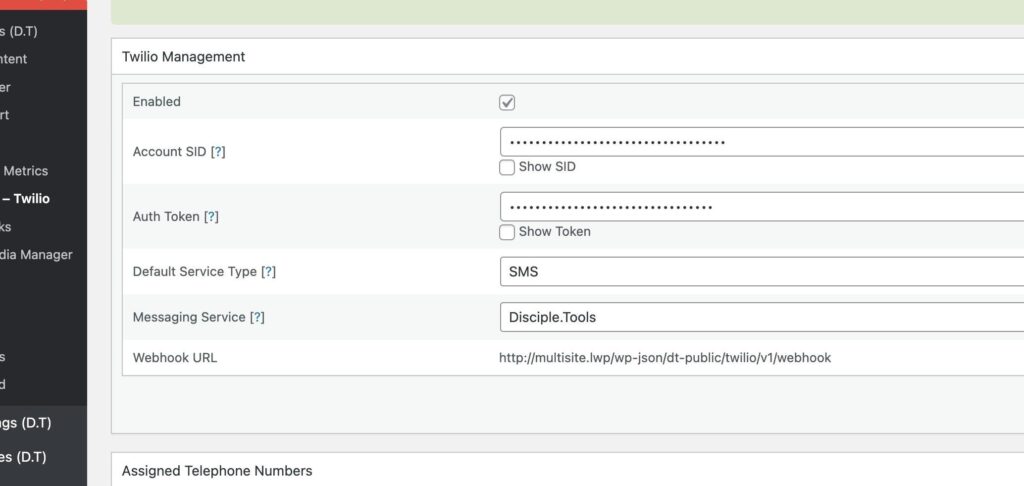

Step 11

Click “Update”
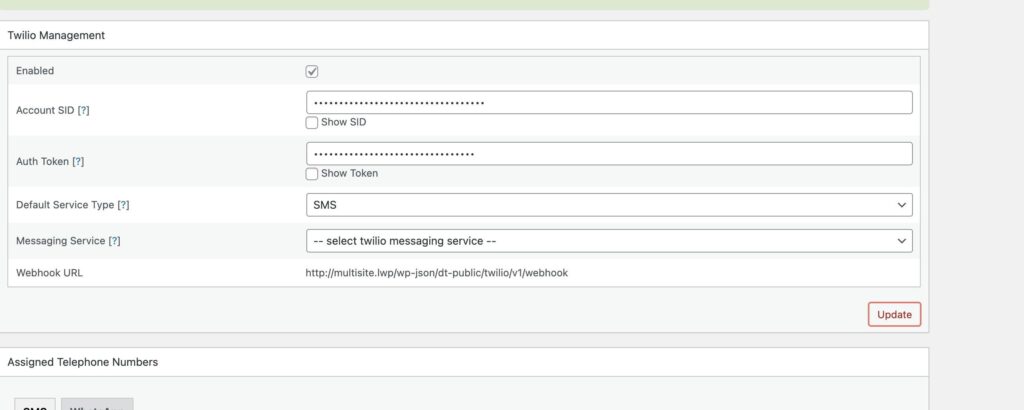

5. Setup Disciple.Tools to send notifications via SMS #

Step 1

Open the Twilio Plugin WP Admin Setting page under D.T Extensions > Channels – Twilio
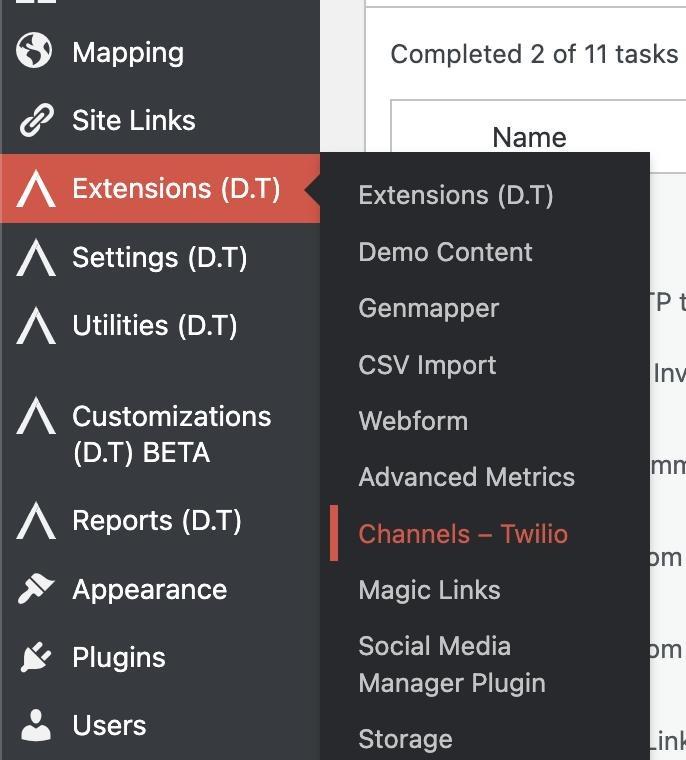

Step 2

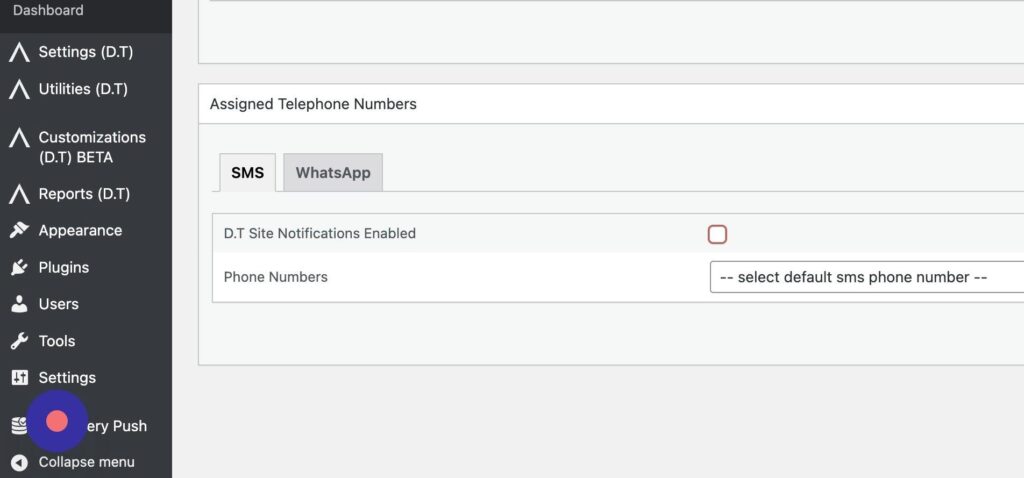
Go to the “Assigned Telephone Numbers” section
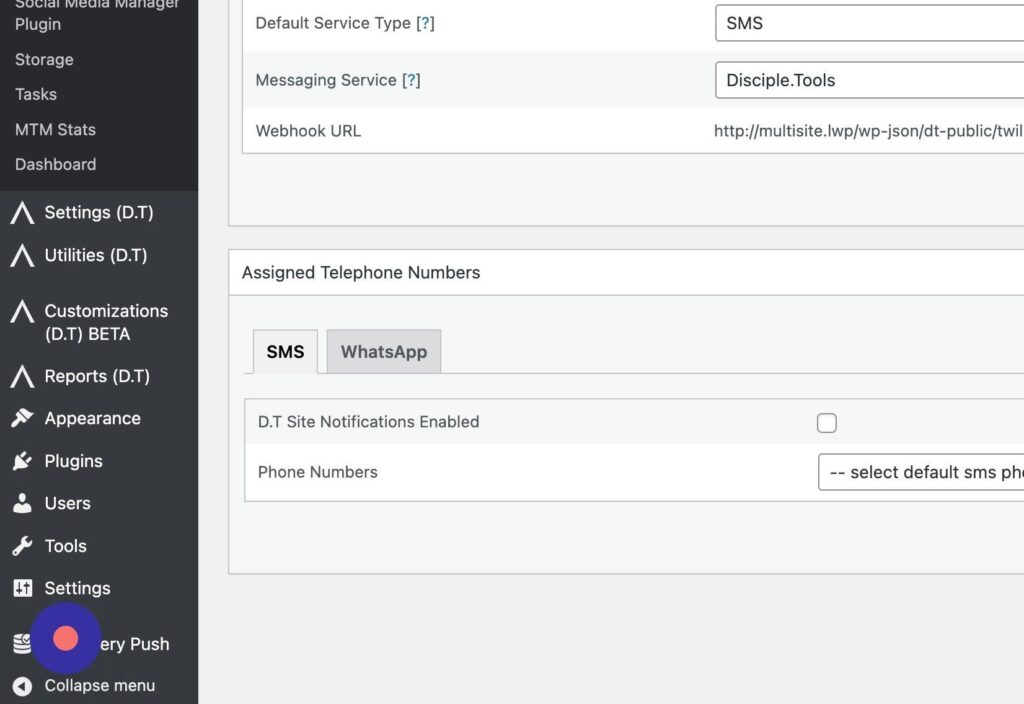

Step 3

Enable the Notifications

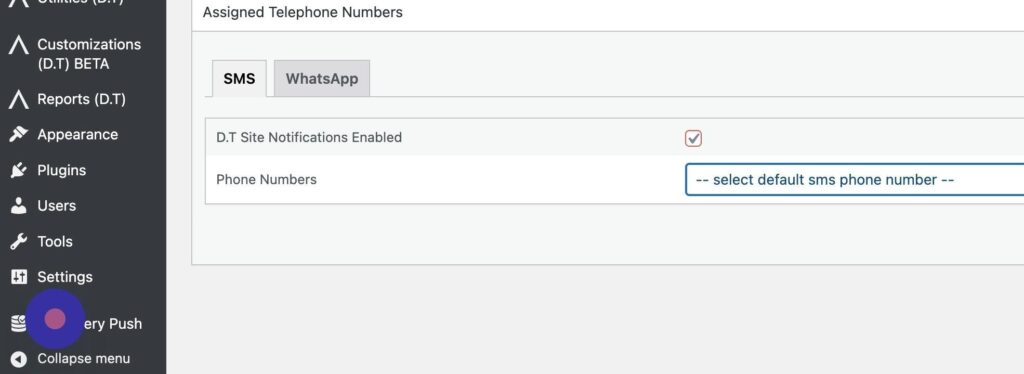
Step 4

Select which Phone Number you want to send notifications from.

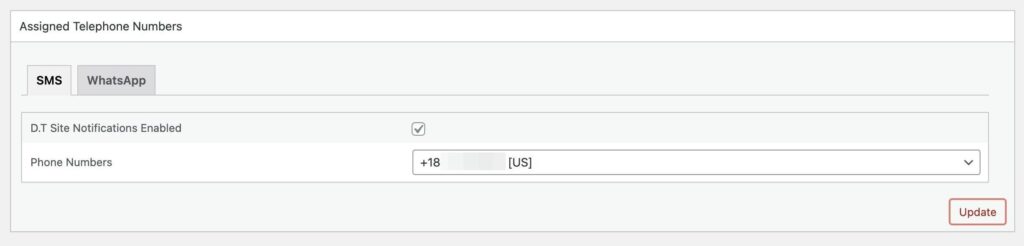
Step 5

Click “Update”

Getting Started with WhatsApp #

After you complete steps 1-3 from Getting Started with SMS you can also set up WhatsApp

1. Setup up a WhatsApp Sender #

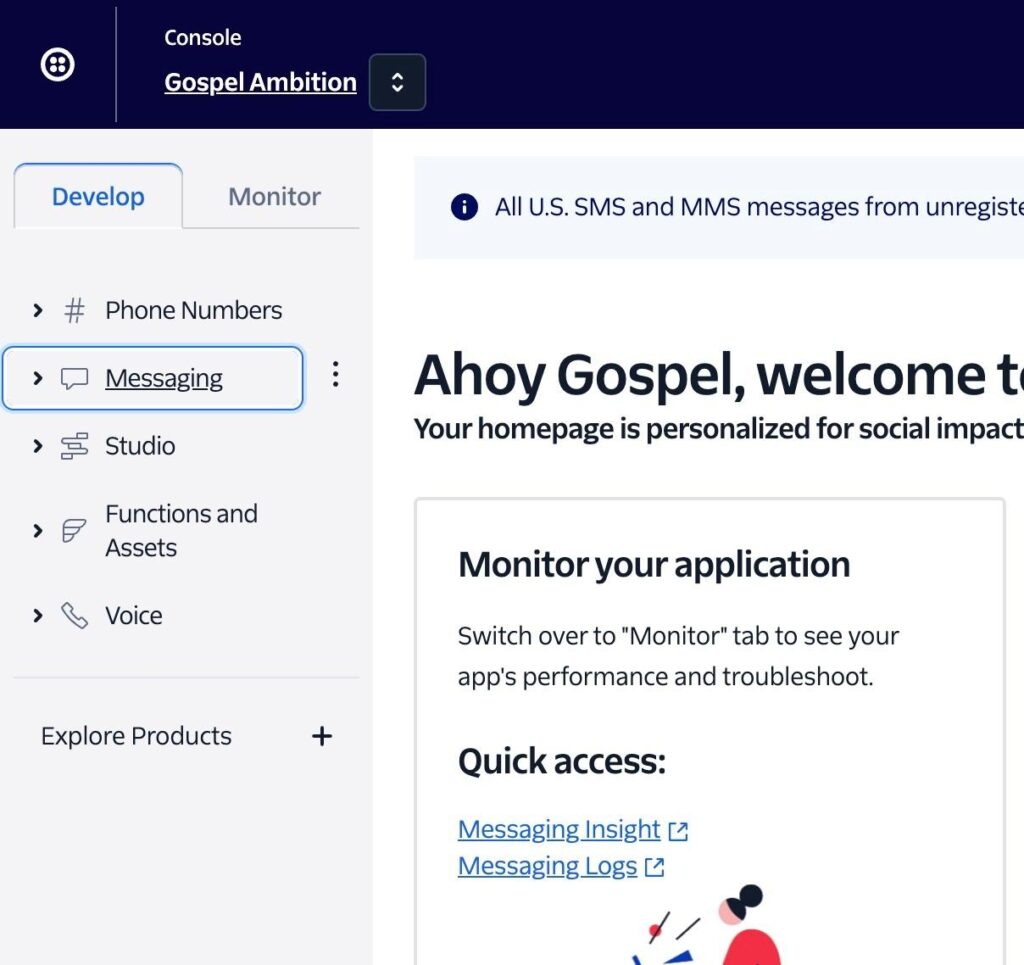
Step 1

Navigate to
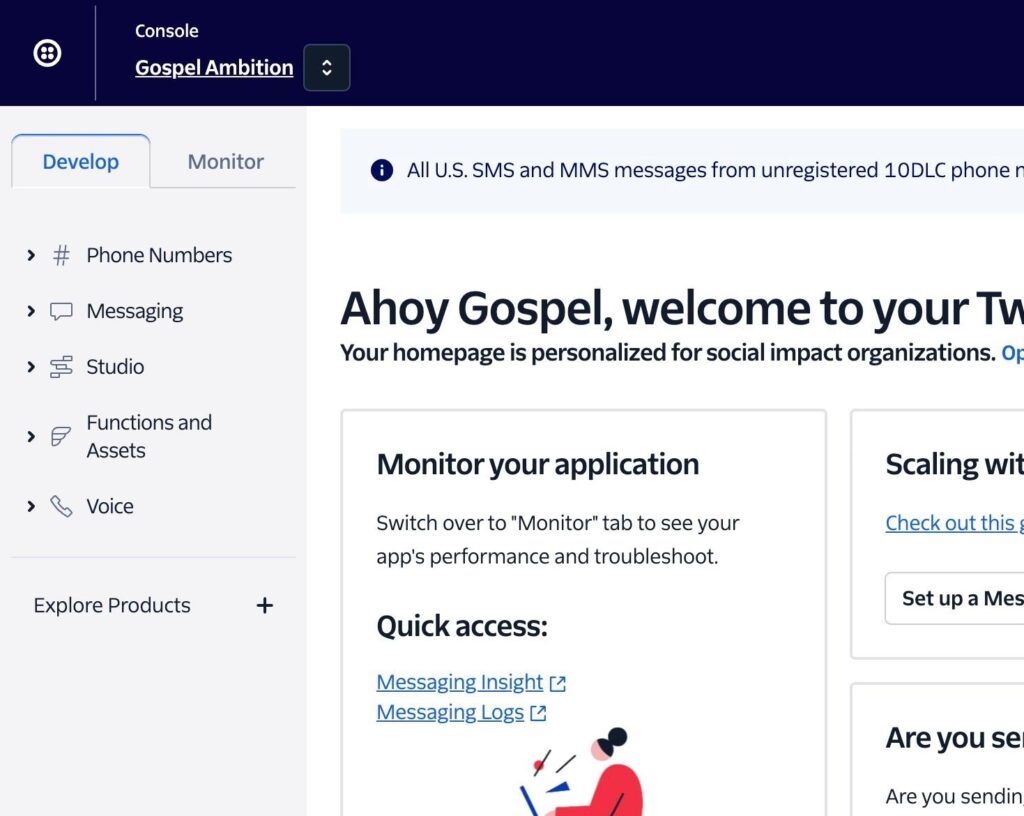

Step 2

Click “Messaging”

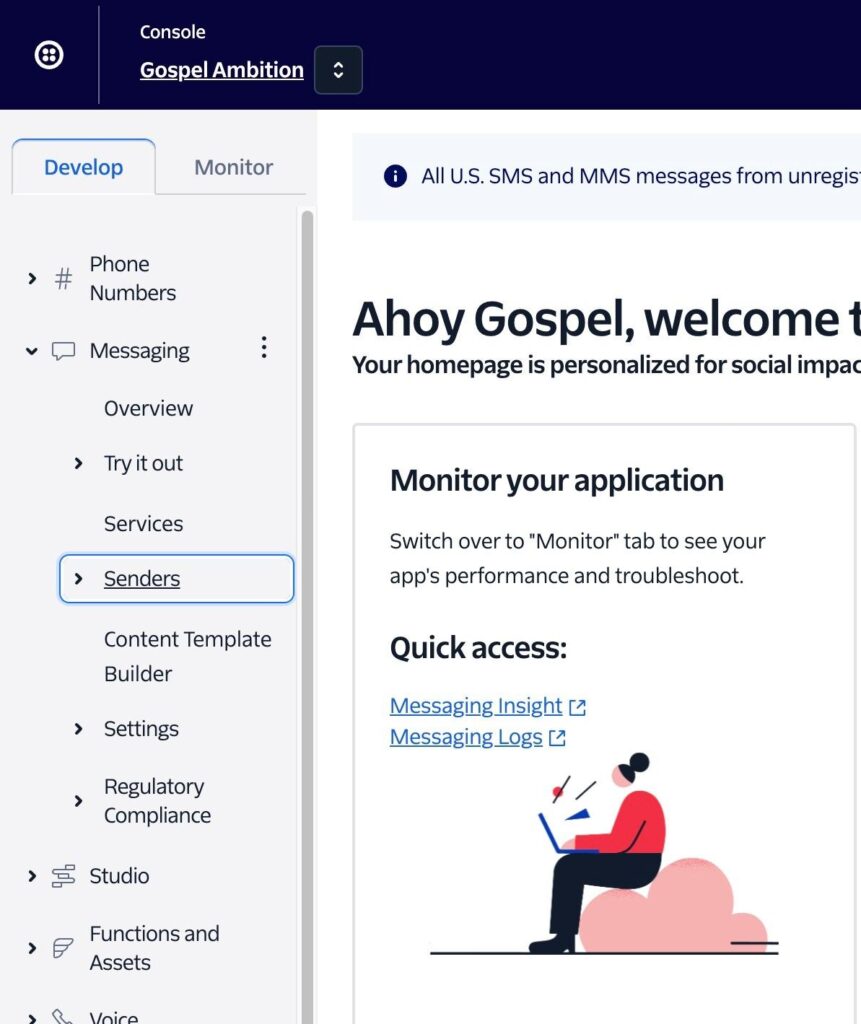
Step 3

Click “Senders”

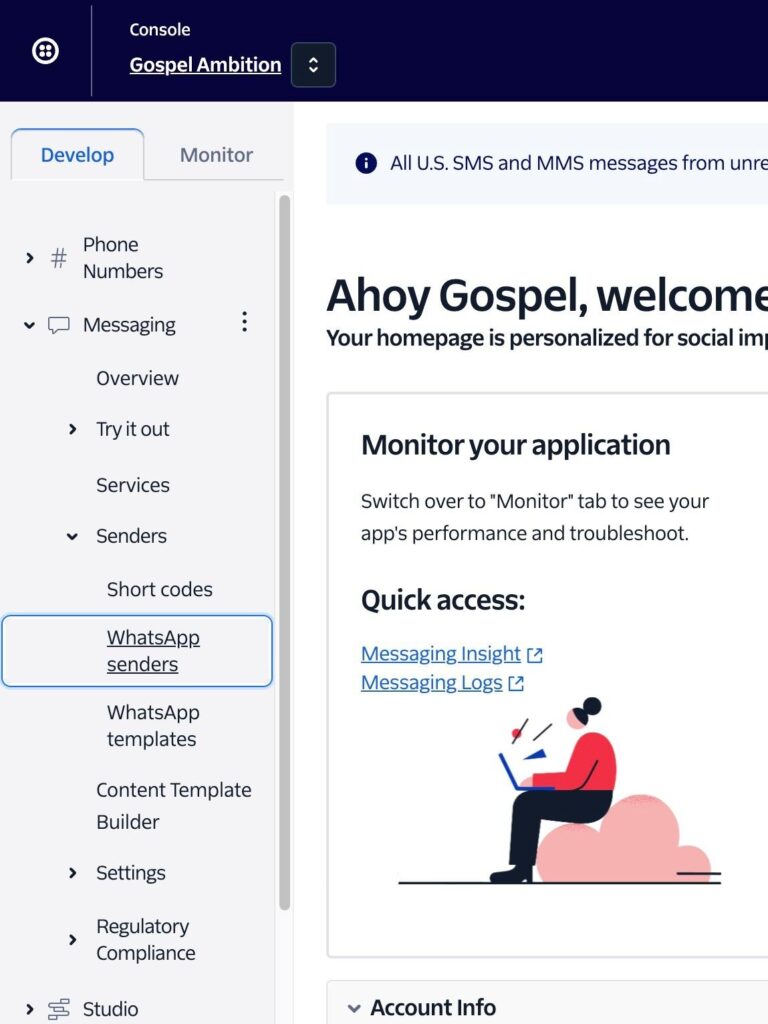
Step 4

Click “WhatsApp senders”

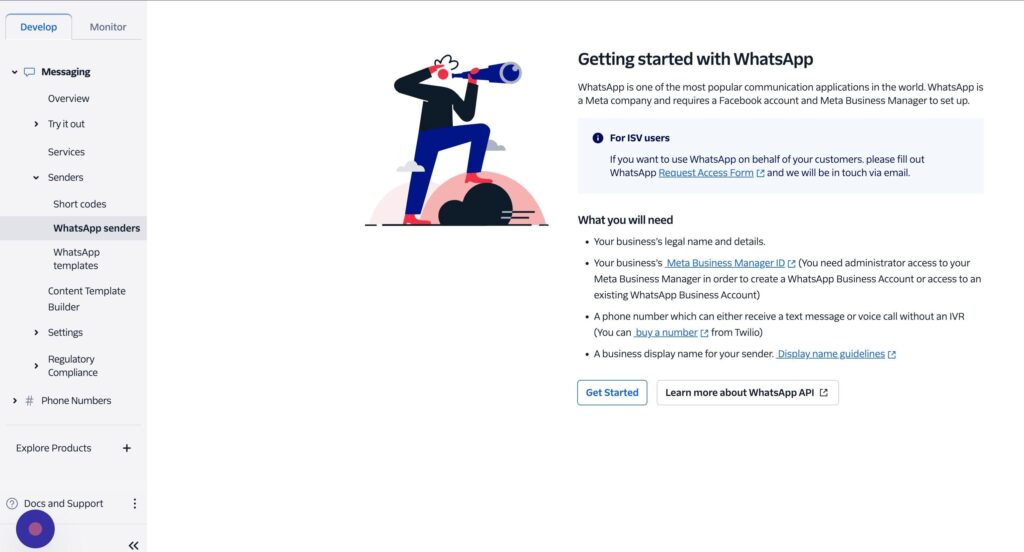
Step 5

Click “Get Started”

Step 6

Click the “Select Twilio number” field.
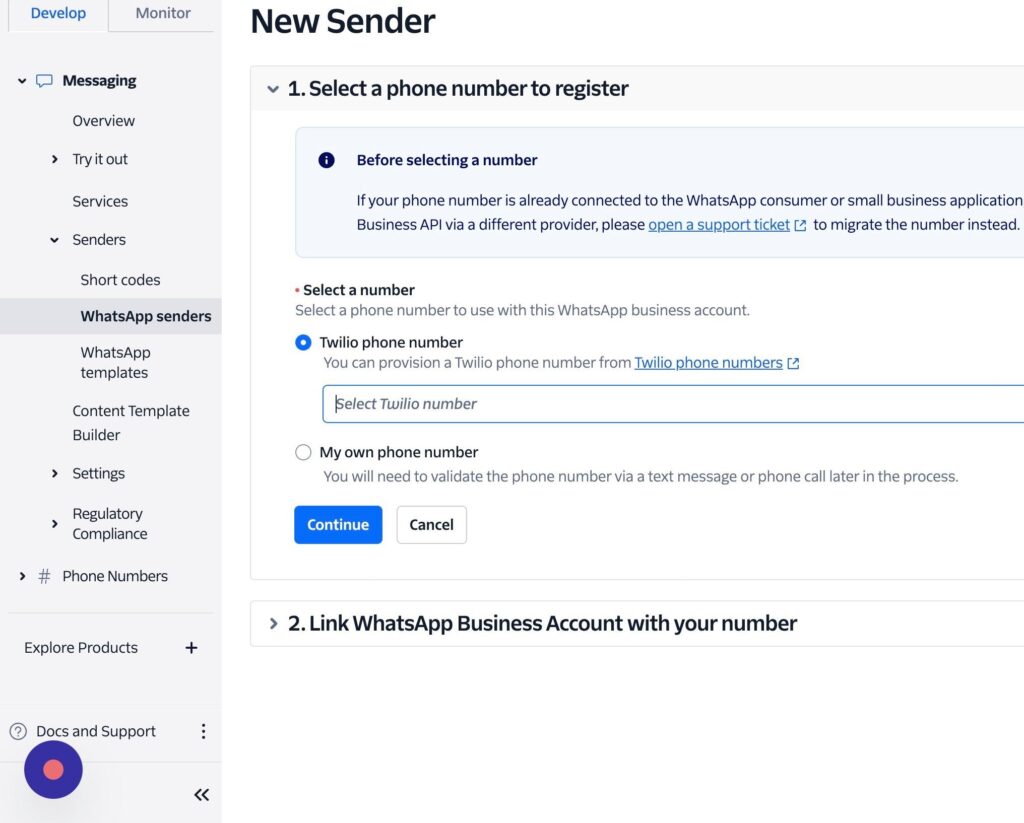

Step 7

Select your phone number
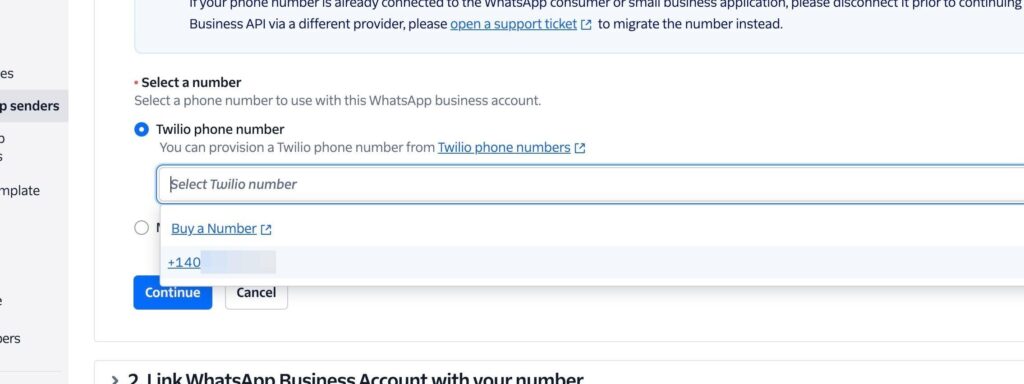

Step 8

Click “Continue”
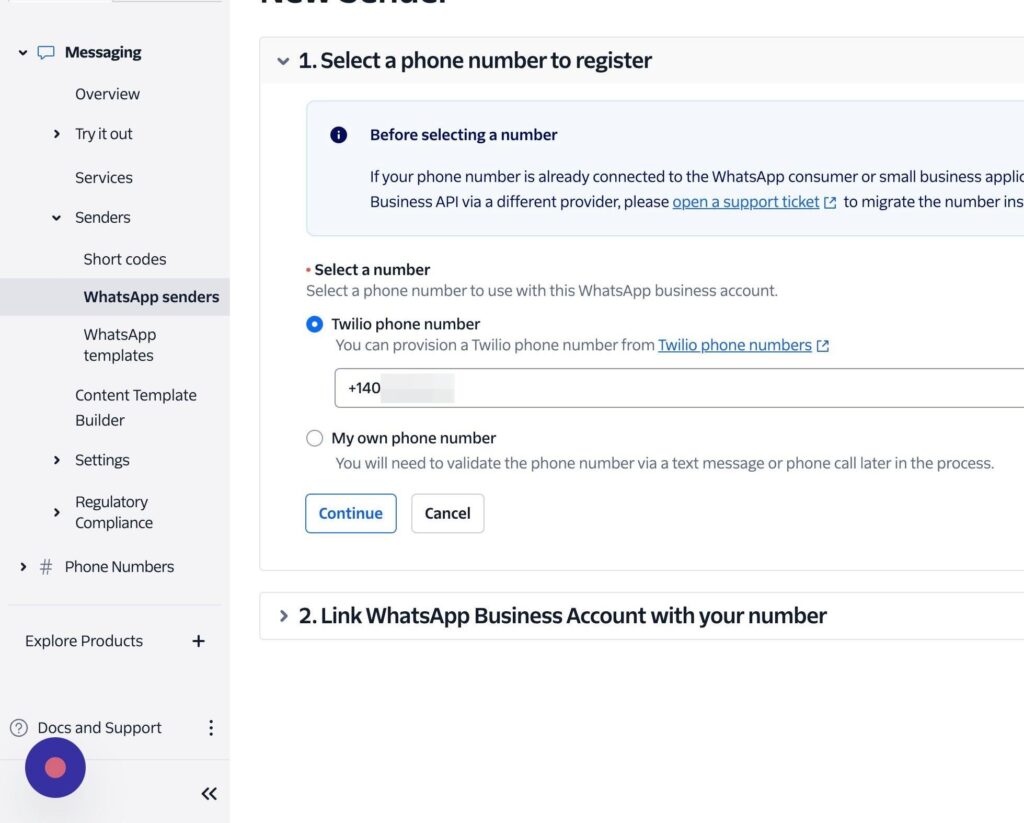

Step 9

Click “Continue with Facebook”
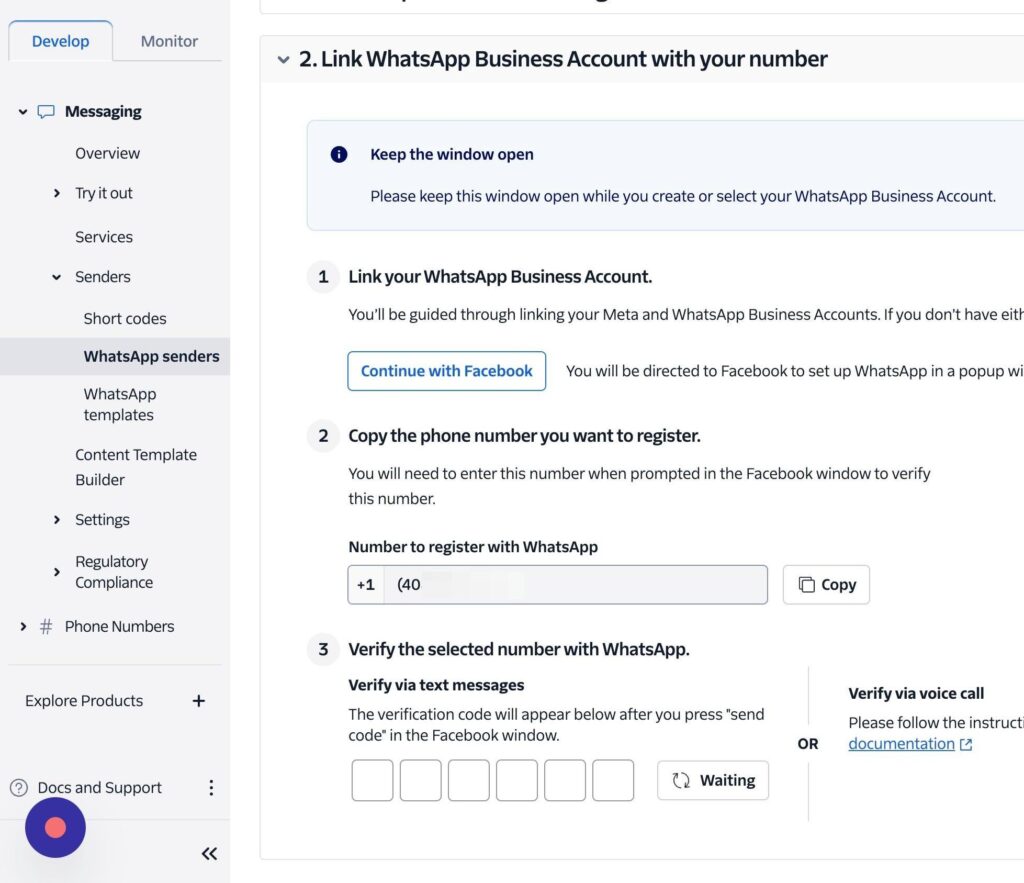

Step 10

The next steps are not show here.\ The modals will guide you through linking Twilio with you Facebook Account, and creating an WhatsApp profile using Facebook Business.


Step 11

After the setup up the Facebook WhatsApp profle, click “WhatsApp senders”
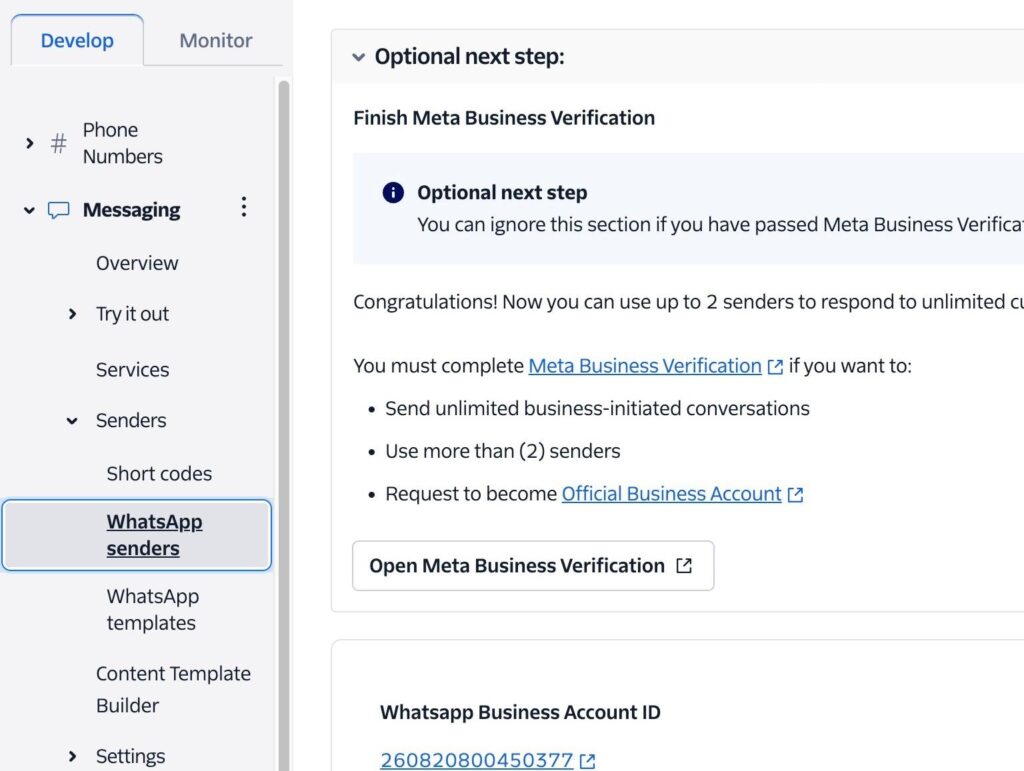

Step 12

Click you phone number.
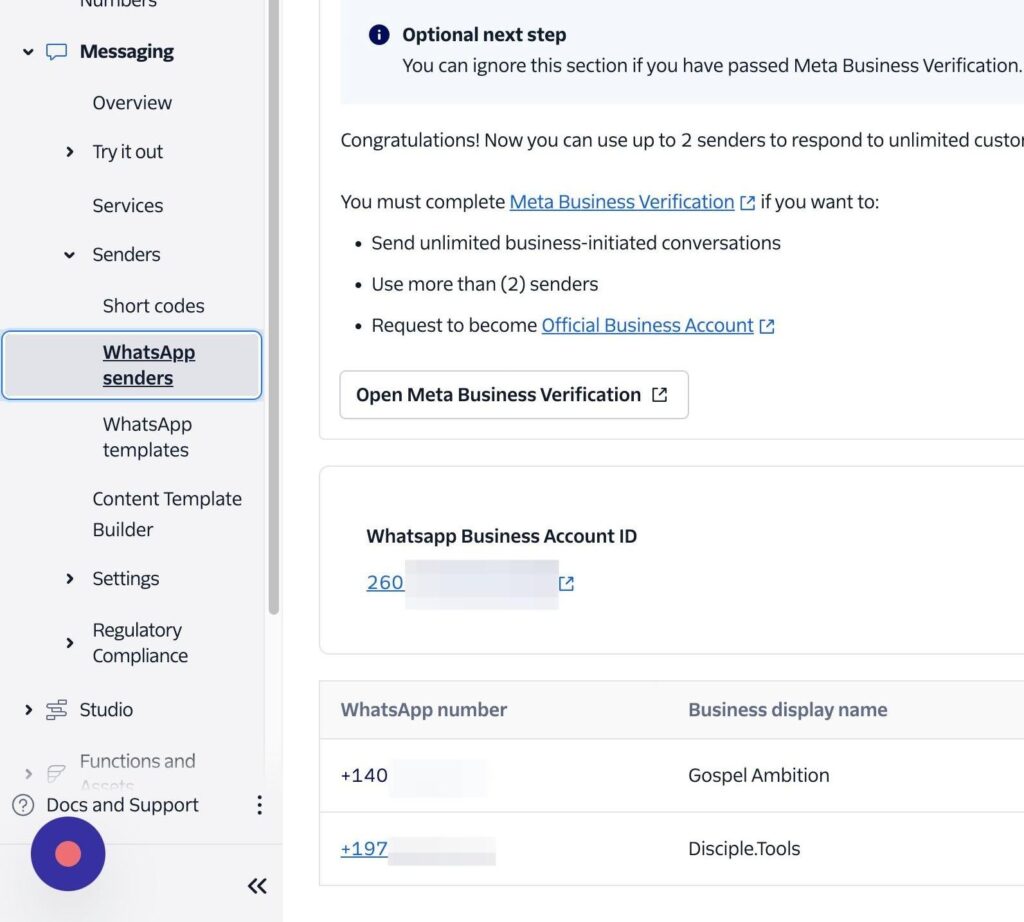

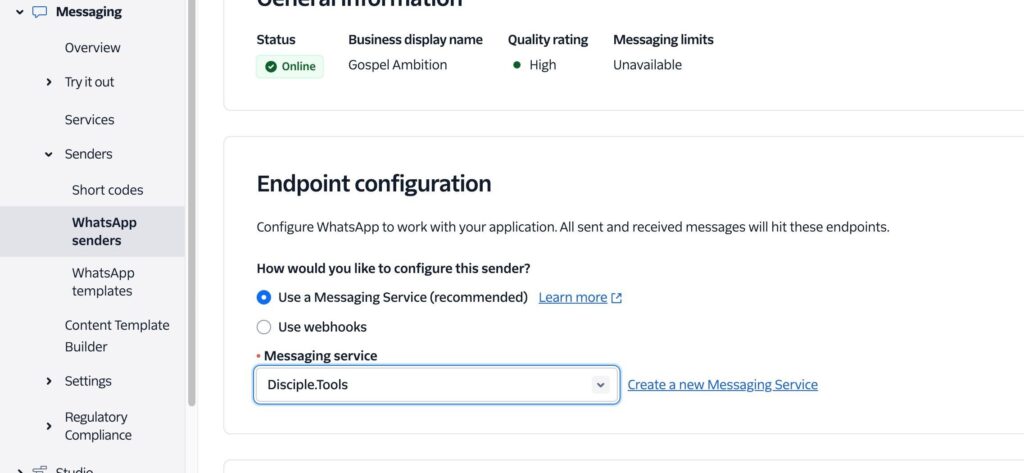
Step 13

In Endpoint Configuration select “Use a Messaging Service” and select the one we create earlier.

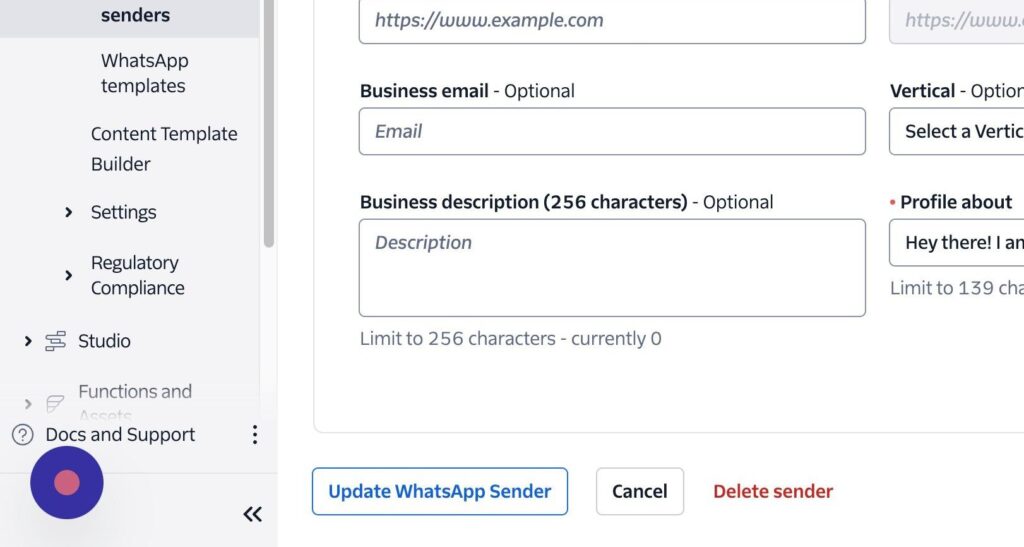
Step 14

Click “Update WhatsApp Sender”

Done

Nice work! You are now ready to configure Disciple.Tools to send WhatsApp messages and notifications.


2. Setup Disciple.Tools to send notifications via WhatApp #

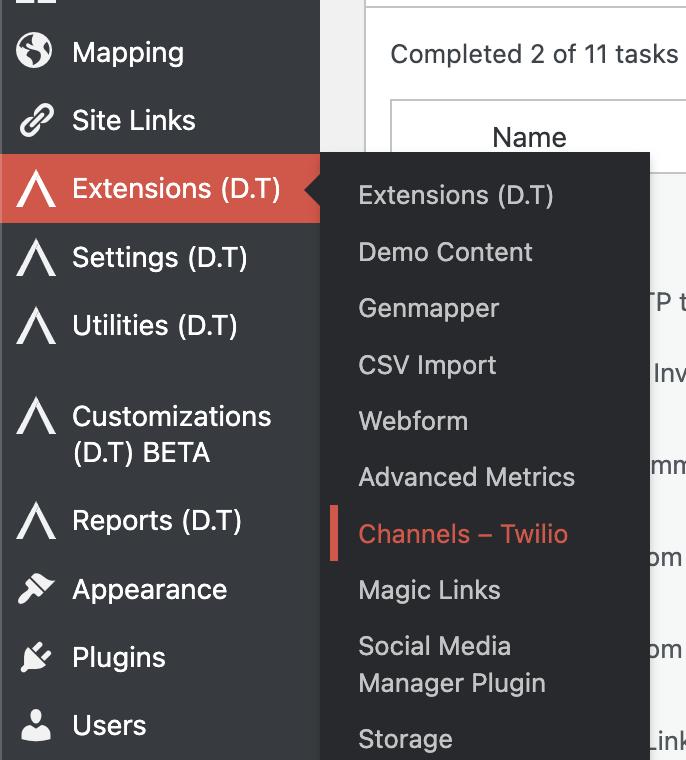
Step 1

Open the Twilio Plugin WP Admin Setting page under D.T Extensions > Channels – Twilio

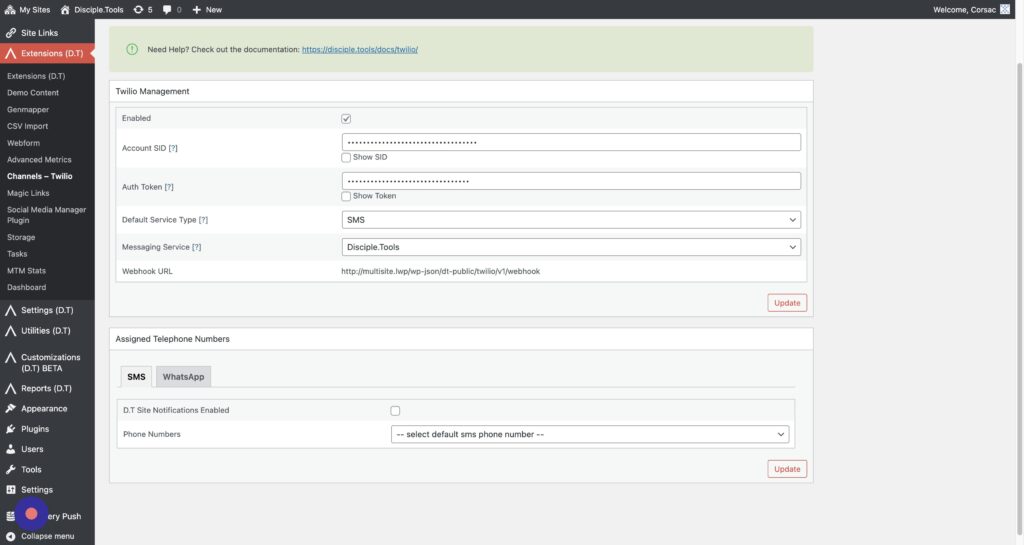
Step 2

Go to the “Assigned Telephone Numbers” section

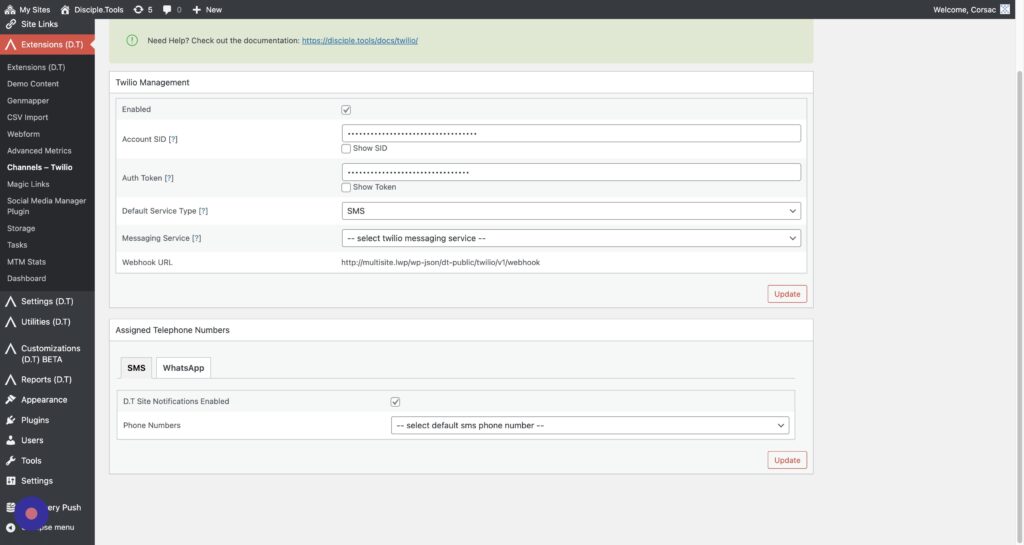
Step 3

Click “WhatsApp”

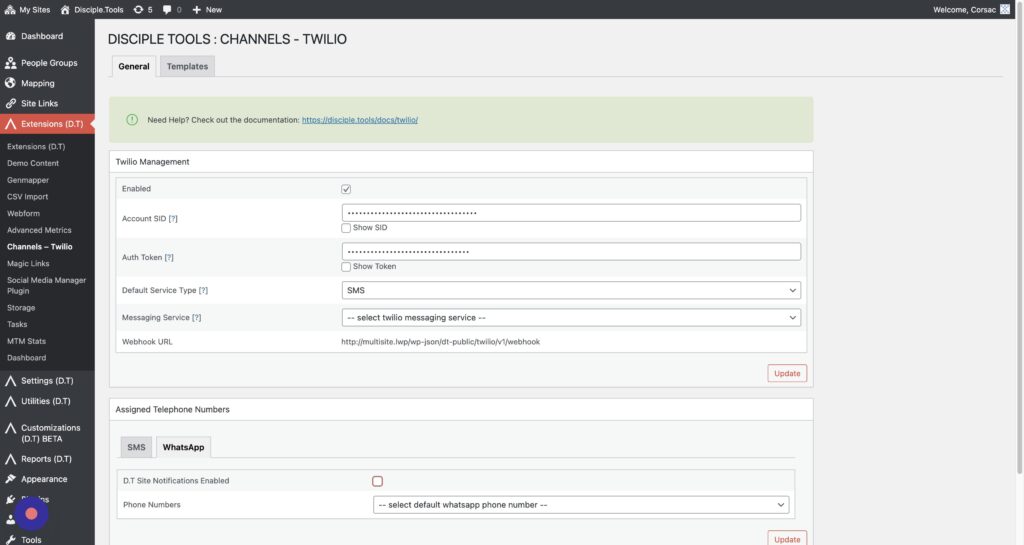
Step 4

Enable WhatsApp Notifications

Step 5

Select which Phone Number you want to send notifications from.
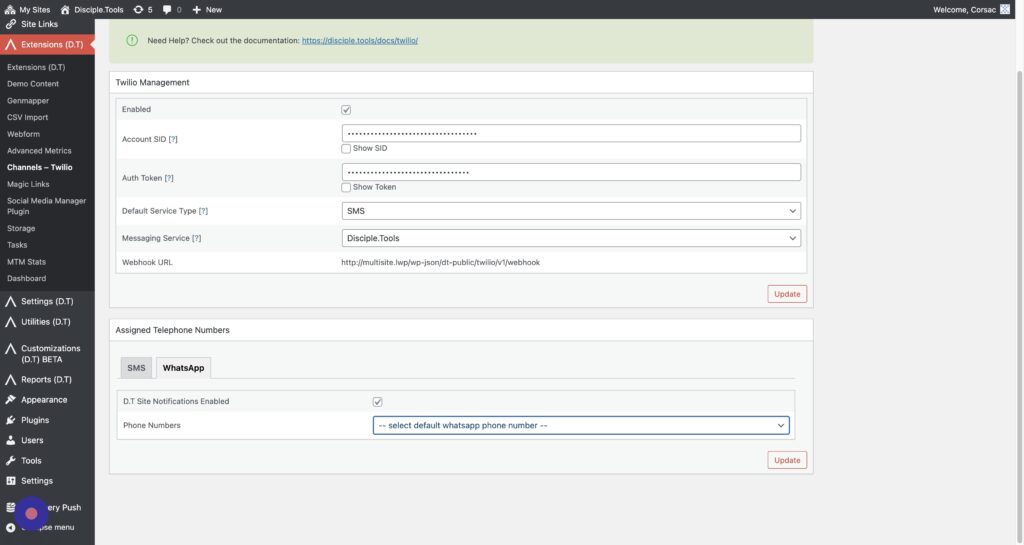

Step 6

Click “Update”
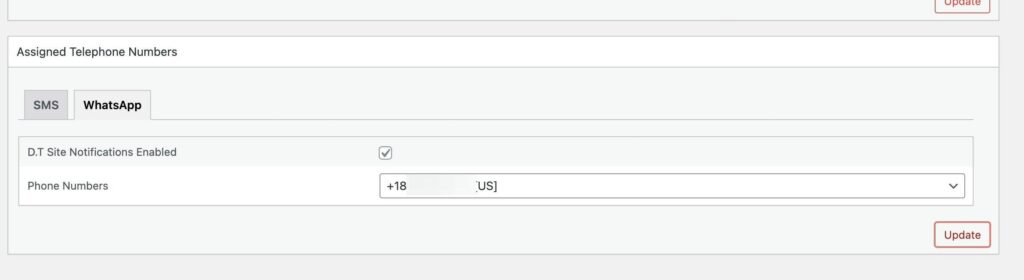

Done

Nice Work!


How to Opt In to receiving notifications via SMS or WhatsApp #

Step 1

In Disciple.Tools, open your profile settings by clicking your name
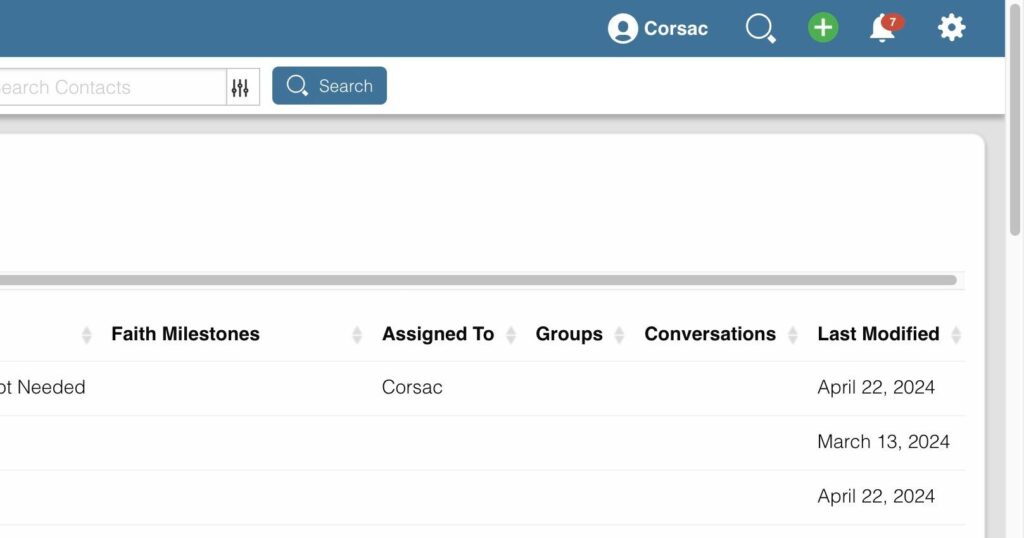

Step 2

Scroll down to “Notifications”
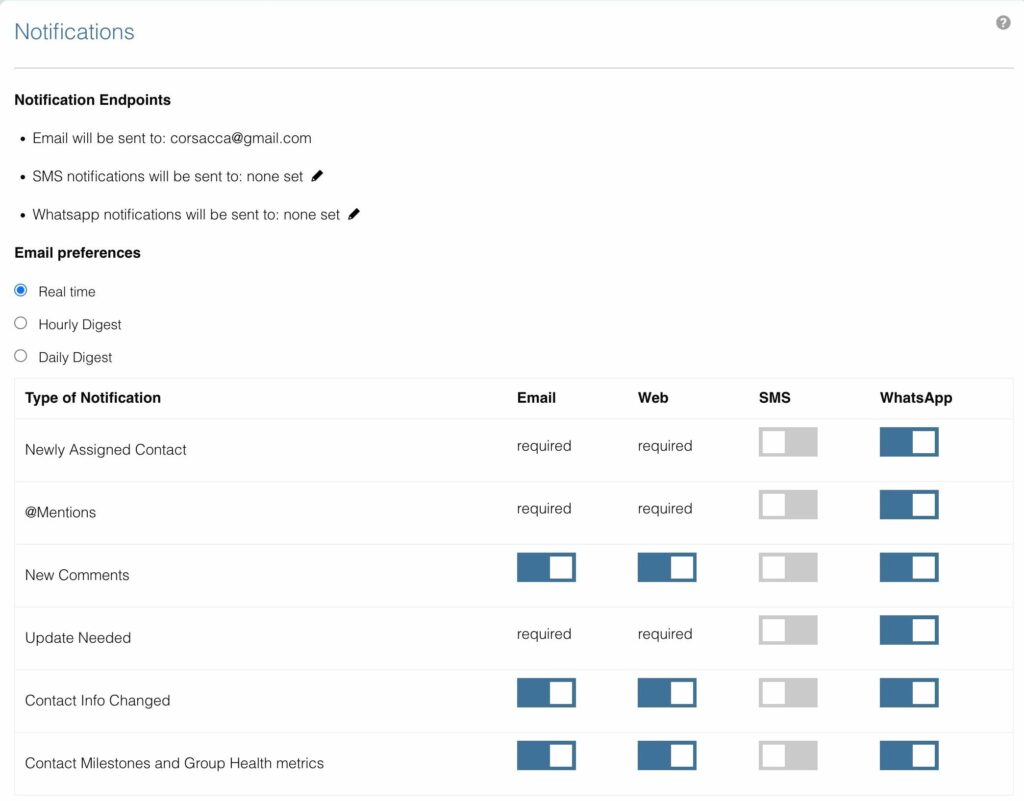

Step 3

Click the edit icon to add the number you want to use for SMS notifications
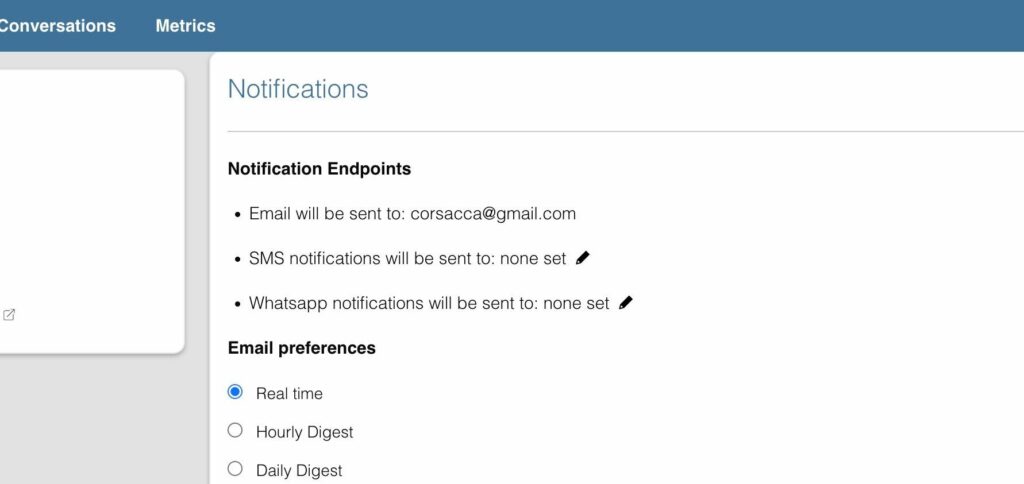

Step 4

For SMS fill out the “Work Phone” field.
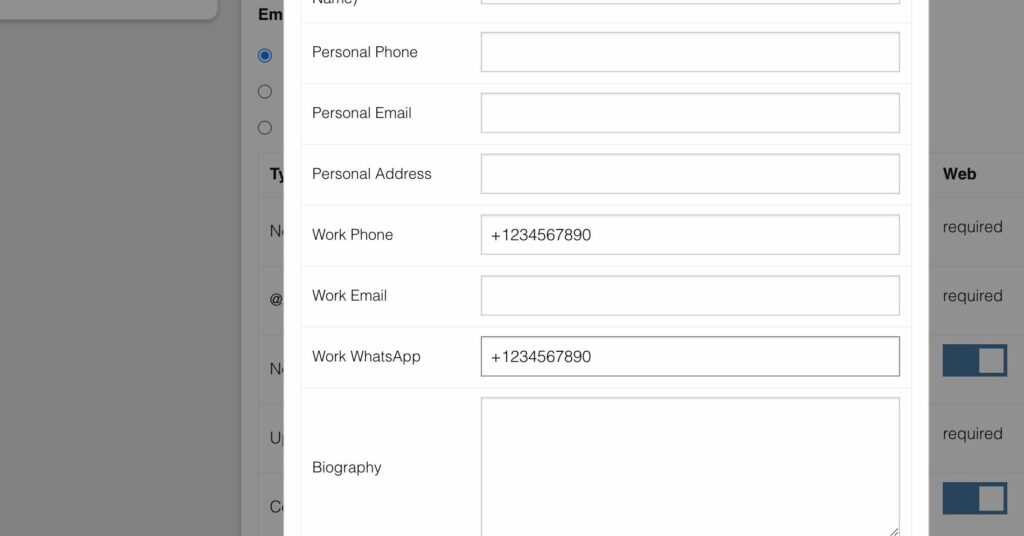

Step 5

For WhatsApp notification fill out the “Work WhatsApp” field.


Step 6

Click “Save”


Step 7

Check the numbers are correct.
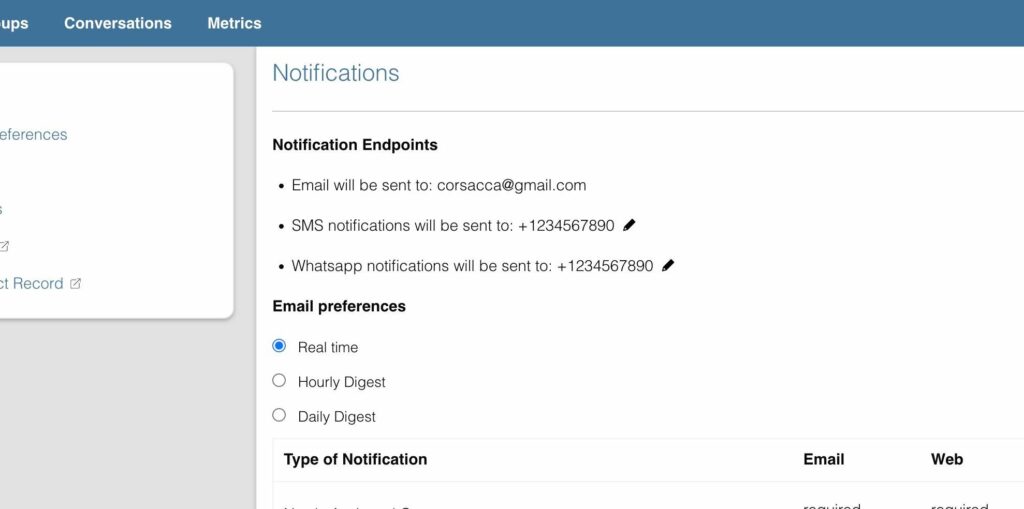

Step 8

Select which notification types you would like to receive
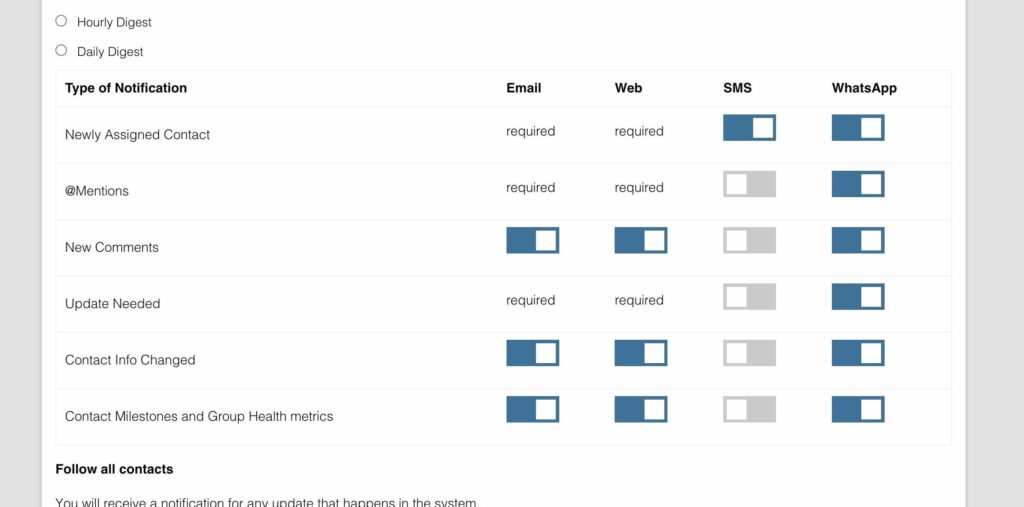

Done

Nice work! Your notifications are set up.


Updated on March 24, 2026
Table of Contents
  • Getting Started with SMS
    • 1. Create a Twilio account
    • 2. Purchase a number for your region
    • 3. Setup a messaging service
    • 4. Configure Disciple.Tools with your Twilio account information
    • 5. Setup Disciple.Tools to send notifications via SMS
  • Getting Started with WhatsApp
    • 1. Setup up a WhatsApp Sender
    • 2. Setup Disciple.Tools to send notifications via WhatApp
  • How to Opt In to receiving notifications via SMS or WhatsApp

Product
Features
Security
Pricing
Demo

Solutions
For Online Strategies
For Small Teams
For Multiple Teams
Kingdom.Training

Resources
Contact Us
News
User Docs
Plugins
Youtube Training

Developers
Developer Docs
Open Source
Github Project
Join the Community

© 2026 Disciple.Tools. A project of GospelAmbition.org

Search